Showing posts with label play. Show all posts

Thursday, September 29, 2016

How to download and play Pokemon GO if its unavaliable in your country

How to download and play Pokemon GO if its unavaliable in your country


Pokemon Go is currently officially available in New Zealand, Australia, United States, Canada and Germany. So, most of the Android and iOS users still dont have access to this game and we still dont know when it will be released in the remaining 200 or so countries filled with millions of more Pokemon fans. If you are impatient, there is actually a way to install and play Pokemon Go right now in countries where it is not available yet. Users in Brazil, Korea, Japan, India, Hong Kong, Nepal and more will be happy to try this method out. So if you are one of those Pokemon fans, who has been frantically searching Pokemon Go on Google Play Store or iTunes App Store  everyday, this post is for you.

Installing Pokemon Go on iphone and Android in unsupported countries


After the recent launch of Pokémon Go on iPhone and Android devices, it has take the world by storm. Pokemon Gos augmented reality gaming requires you to actually get out and search for Pokemon around your area and beyond. As your experience level increases you will be able to catch more powerful Pokemons, battle and take over your enemys teams and become the ultimate Pokemon Master. The game is highly addictive and like most Pokemon fans you too will be saying "gotta catch em all". The success of this game has skyrocketed Nintendos stock prices and now its worth billions of dollars more than before.

The direct installation method is easy. You just have to download the apk installation file and directly install the game instead of via Google Play Store. Then simply open your game and you are good to go. Pokemon Go does require you to turn on GPS and mobile data, which is likley to drain your phones battery faster than usual. On the plus side, the mobile data usage seems to be very reasonable and less than most other apps and games.

How to Install Pokemon Go on any unsupported countries: Android

  • Download Pokemon Go Apk from here: Pokemon GO APK installation
  • Before installation make sure installation from unknown sources are allowed. To do this, go to Settings >> Privacy (or Security) >> Scroll down and tap on Unknown Sources to allow installation of apps from unknown sources.
  • Now go to downloads and tap on the apk file you downloaded in step 1 and install Pokémon Go.


Now open Pokemon GO and it will prompt you to turn on GPS. Turn on GPS and WiFI or mobile data. You can sign in by using your Google account. Next, select/edit your avatar and type your nickname. Now the game will start and the first thing you will see is your avatar on a map. The map is extracted from Google Maps so it will be the real map of your area. As you move, so will your character. You will most likely find a couple of Pokemons nearby right away. More Pokemons will be placed further away. You can check your map and start hunting Pokemon. An important tip: Play safe and responsibly, do not trespass others properties, do not go chasing Pokemons on the highway or in the middle of the street and do not jump off a cliff if you see a Pokemon there.  

How to Install Pokemon Go on any unsupported countries: Android

  • On your iPhone, logout from App Store. Go to settings >> tap "Apple ID" and sign out
  • Now from settings >> General >> Language and Region, set your region as Australia, USA ,Germany or any region where Pokemon Go is available. 
  • Open App store and search "Pokemon GO" and download it.
  • If you don;t see it, you have to create a new Apple ID. While creating new Apple ID, make sure that your address is that of New Zealand, Germany, USA, Canada or any address where Pokemon Go is officially available. You can even use this Fakenamegenerator tool to generate a bogus Personal info of a U.S resident. 
  • Now go back to  iTunes App Store and Pokemon GO will be available.

After Pokemon Go is officially released in your region, you can switch back to your original Apple ID.


download now

Read More

Wednesday, September 28, 2016

Android apps that play only audio from video files

Android apps that play only audio from video files


A lot of users have been asking me if there is an Android app that plays only audio from video files. Most of the users wanted a way to listen to just the audio of YouTube videos theyd downloaded. You can find a lot of important and free audio books, lectures and tutorials on YouTube, which can be downloaded via video downloader plugins in Firefox browser. Such YouTube files will be downloaded in either MP4 or FLV format, and by default it opens on a video player app even though you just want to listen to the music or audio of that file. Fortunately, there are a couple of Android apps that play only audio from video files of different formats. This means audio playback will continue even when the screen is turned off.


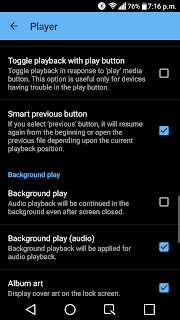
How to listen to only audio of videos with screen turned off using MX Player

MX Player is probably the most downloaded video player app on Android. What many don’t know is
Background playback turned on in MX Player settings
that MX Player has a feature that allows you to play only the sound track of the video in the background i.e. when the app is minimized. This allows you to continue to listen to the audio from video files even when the screen is turned off. To use this feature, follow these steps:
  • Download and open MX Player
  • Press menu (three dot icon on the top right) >> Tap “Settings” >> Tap “Player”
  • Scroll down and select “Background play”


That’s it now audio playback will be continued in the background even after screen is closed.

Note: There is no playlist feature in Mx Player so you will have to use folders to organize your video files.

Is there a video player out there that will let me play only the audio track of the video, or at least turn off the screen while Im playing it?

How to Play only audio track of videos via Poweramp music player

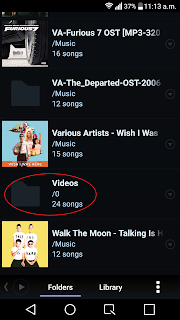
Video files detected as songs in Poweramp Folders Poweramp will detect all your video files as songs and play it just like any other audio files. Though Poweramp is a paid app, it will give you more audio control that Mx Player. Another drawback of MX Player is that it doesn’t have a built-in playlist creator, so you will have to manage videos in separate folders if you want some videos to play together. On Poweramp you can manage the video files just like audio files and add them to playlists and also tweak the audio to your liking using the built-in equalizer.


While Poweramp will automatically find your video files saved in the internal storage, it may not detect it files inside a folder in the external storage or SD card. In that case, go to settings >> Folders and library >> Music Folders. Expand folders and then choose the appropriate folder in the external storage. Now, Poweramp will scan that folder as well.

If you have setup a default video app, you will need to reset or clear the default app preference. Read  this post: How to remove default app settings on Android 

If you know any other Android apps that lets you play audio from video file, let us know in the comments. We will test such apps and add it to this post.


download now

Read More

How to Fix Error 505 in Google Play Store

How to Fix Error 505 in Google Play Store


The Error 505 is a Google Play Store error in Android 5.0 Lollipop and KitKat 4.4. Some apps affected by Error code 505 include Google Play Games, Asphalt 8, Hearthstone, The Walking Dead, Clash of Clans and so on. The fix involves running a simple ADB command in Android SDK, we will come to that later. Many got this error due to the Adobe Air app. So you can try uninstalling the app. This error has been fixed on the latest versions of Android Lollipop so you can also update your version of Lollipop to 5.1 or later to fix it.

This is actually a permission error so clearing cache method may not work. But you can still give it a try. First, clear the cache and data for Google Play Store and Google Service Framework. These methods are explained in detail here: RPC-S:7/RPC-S:5 and Error 963. If those solutions didnt help, try the steps below to fix Google Play Error 505 while installing or updating apps:

How to fix Error 505 in Google Play Store during app download


Method 1: Uninstall conflicting app(s)

If you have multiple apps installed to perform similar function, then the -505 error code maybe caused because those apps are trying to access the same system settings. For example- you may have multiple banking apps installed and both will try to use similar payment settings and protocols. And when these apps are conflicted error 505 is caused. To resolve this issue, simply uninstall the first app and use the other one and vice versa.

Method 2: Uninstall/Re-install

First completely uninstall all the apps that are getting this error in Google Play.  For example if your Blizzard apps are facing error 505, uninstall all of them and reinstall. Also, you may have installed some Android apps from the Amazon store- try uninstalling them and re-installing them via Google Play Store.

Error Formats:  
  • Unknown error code during application install "-505"
  • "Hearthstone: Heroes of Warcraft" cant be installed. Try again, and if the problem continues, get help troubleshooting (Error code: -505)
screenshot- (Error code: -505) while installing Google+ in Google Play

Method 3: ADB Uninstall


Before you begin the steps you have to install the Android SDK on your PC, connect your Android device and perform an ADB uninstall for the app package thats causing the error.

The ADB tool is inside the platform-tools folder inside Android SDK folder. You will have to open command prompt. For Windows users: Start>> in the search box type cmd >> right click and select "Run as Administrator"

From inside the command prompt,  navigate to Android SDK folder. Now you can run the ADB. uninstall command.

After youve installed the Android SDK and appropriate USB drivers follow these steps:
  • Perform an ADB uninstall for the app package thats causing the error.  App packages are in this format: com.xx.xx. You can check the app package name by going to Android >> data folder inside the internal memory of your Android device.  
    • For example to remove chrome package from your device, the command is: adb uninstall com.android.chrome.
running adb uninstall command in Android SDK
  • After successful uninstall you will see a message that says, "success"
  • Now reinstall or update the app (or game) from the Play Store


Hopefully the above step gave you some idea about how to fix this issue. If nothing worked you may have to factory reset your device. If you have a better solution for the unknown error 505 please let us know about it in the comments.

download now

Read More

Tuesday, September 27, 2016

How to fix error 501 on Google Play Store during download or installation

How to fix error 501 on Google Play Store during download or installation


Due to error 501 in Google Play Store Android users can’t install, download or update many apps and games on their Android phones or tablets. This problem is caused most of the time if you have multiple apps installations going on in the Play Store. In such case, cancel all the app installations and download them one by one. If you are a custom ROM user, you may get the 501 error code while updating Google Play Services. This is caused because you flashed an incompatible Gapps package or a buggy OS. In such a case, reflashing the OS + Gapps package could be the solution. In my case, the Google Play Store error code –501 popped up while installing an app update. Here are all the possible methods to fix Android error 501 in Google Play:

Android Fix: Google Play Error Code: -501

Google Play Store Error 501 while updating a Google app


Method 1: Reinstall

Simply cancel the installation process and try installing the app or game. If that didn’t fix it, uninstall the app/game completely and download it again from Google Play Store.

Method 2: Uninstall updates for Google play Services

This method will probably solve error 501 message while updating Google Play apps like Google Play Services, Google +, Google Play Games, YouTube, Gmail and so on.

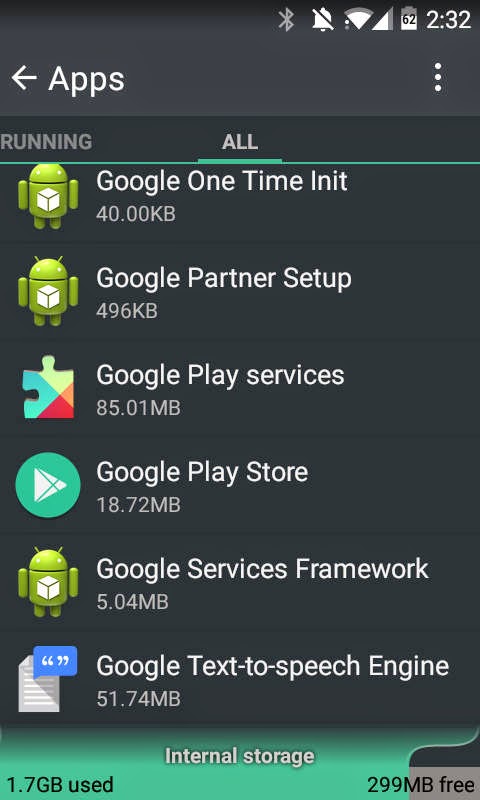
  • Go to Settings >> Apps >> All
  • Scroll and select “Google Play Services”
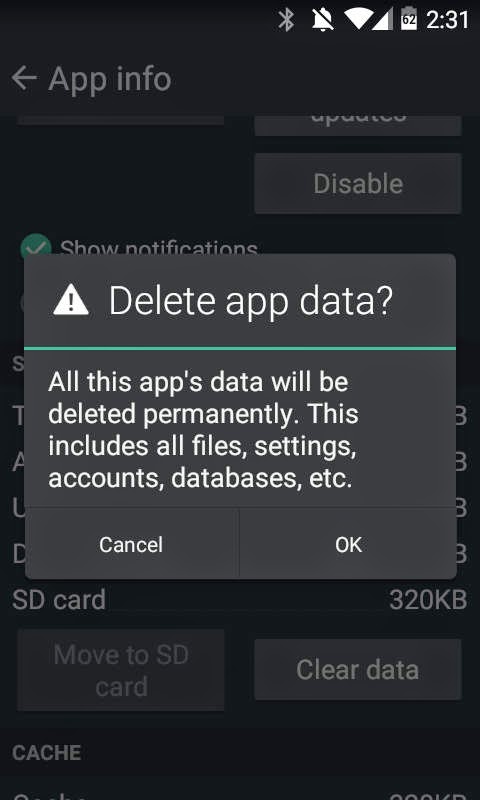
    • Tap “Uninstall updates” and “clear data”
  • Also,  select "Google Play Store" and tap "Uninstall updates"
  • Again, go to Apps >> All >> select “Google Service framework”
    • Tap “Clear Data”
  • Open Google Play and download or update an app


Method 3: Resetting App preferences

Resetting app preferences will restore default settings for your apps. This won’t delete any data from your Android device.

  • Go to settings >> Apps
  • Press menu or the three dots on the top right
  • Select “Reset app preferences” >> Tap “OK”


Method 4: For custom ROM users (Cyanogenmod, Paranoid Android, SlimROM etc)

First try reflashing your OS and then a compatible GAPPs package. Go to recovery and wipe cache partition. See if that solved the 501 error in Google Play. If that didn’t work, you will need to entirely wipe the device (factory reset) and then run a fresh installation. For the fresh reinstallation try a different ROM and a new Gapps package. Reboot into recovery and proceed to flash the new zip files. That will almost certainly fix the 501 error message while updating Google Play Services.


Thanks for reading. Hope one of the above methods fixed “Can’t download app due to error code -501” in Google Play Store issue. If you have alternative solutions please suggest them in the comments.

download now

Read More

How to Fix Error 500 in Google Play Store

How to Fix Error 500 in Google Play Store


Google Play Error 500 is an Android app download error that many Clash of Clans users are experiencing on their Android devices running older OS like 4.2 or 4.3 JellyBean. Relatively newer OSs like Android 4.4 KitKat and 5.0 Lollipop is also affected by this bug but not as widely as the older versions. Due to error 500 in Google Play Store, users cant download or update any Android apps. Sometimes this error code pops up during installation and even after the app has been completely downloaded. This is the exact format of the error message- "Clash of Clans" could not be downloaded due to an error (500).

Other apps affected by this Play Store bug includes YouTube, Facebook, WhatsApp, Viber and other apps. Normally this issue is caused by a slow internet connection so you can try waiting for your Wi-Fi to get back to its normal speed or you can try connecting to a different network. If the app youre , try downloading the app on mobile data.  Turn Wi-Fi off and turn it back on and try the installation. If that didnt fix  Error 500 in Google Play Store, then try the steps below:

How to fix error 500 in Google Play Store

Clash of clans game poster

Note: This fix works for any app or game causing error code 500.

Method 1: (For update error)
  • Sync Game data to Google Play Store (Settings >> Accounts >> choose ur gmail)
  • Totally uninstall Clash of Clans or any app thats causing error
  • Then reinstall it from Google Play Store


Method 2: Clearing Cache & Data
  • Go to Settings >> Apps >> swipe and go to "All" tab
  • scroll down and select "Google Play Store" >> Select "Clear Cache" and "Clear Data"
  • similarly, clear cache and data for "Google Play Services"
  • reboot (optional)
  • open Google play and try to download or update the app or game

Method 3: Remove and add back your Google account

This is a very common error fix used to solve Google play Error 927, Error 963, and Error 907.  In this method you will have to remove your Gmail account from settings >> Accounts >> Google >> press menu and select  "Remove account". After that simply adding the same account back will fix the app download/update error.


Let us know if the above steps fixed Google Play Store Error 500 in your Android smartphone or tablet. If you have any other solution or fix, let please drop a comment and help us out.


download now

Read More

How to fix error 923 in Google Play Store

How to fix error 923 in Google Play Store


The Error 923 is a Google Play Store error which prevents Android users from updating or downloading apps and games. The error message looks like this: "Viber" could not be downloaded due to an error (923). Popular apps affected by this Google Play Store bug include Facebook, Clash of Clans, Hearthstone, Whatsapp and Subway Surfer.  While I’m not sure what Android error code 923 exactly means, in order to fix it, you will use the cache clearing method, which has been used to solve other common Android market errors like RPC:S-7 and the infamous “unfortunately app has stopped error”. Users will keep getting this error until they clear the cache and data for some Google processes. Here are a couple of fix for Error 923 in Google Play Store:


Similar Error: Fix Android Error 924 on Google Play

How to Fix Error 923 in Google Play Store 

First Method : Clear Google app cache


Clearing App Cache to fix 923 error in AndroidClearing App Cache for Google Play Store


  • Go to Settings >> Apps >> Swipe left to see “All” apps list
    • Scroll down and select “Google Play Store” 
    • Select “Force stop” and then “Clear Data” >> Select “Ok”
  • Go to Settings >> Apps >> Swipe left to see “All” apps list
    • Scroll down and select “Google Play Services” >> 
    • Select “Force stop” and then “Clear cache” >> Select “Ok”
  • (optional) Again go back to “All” app list 
    • Scroll down and select “Google Play Framework” >> 
    • Select “Force stop” and then “Clear Data” >> Select “Ok”


Once above steps are completed, open Google Play Store, add you Gmail account information and start downloading apps and games.

Second Method: Clear System Cache

Android_Settings
Clearing System Cache to Fix error 923 in Android Play Store


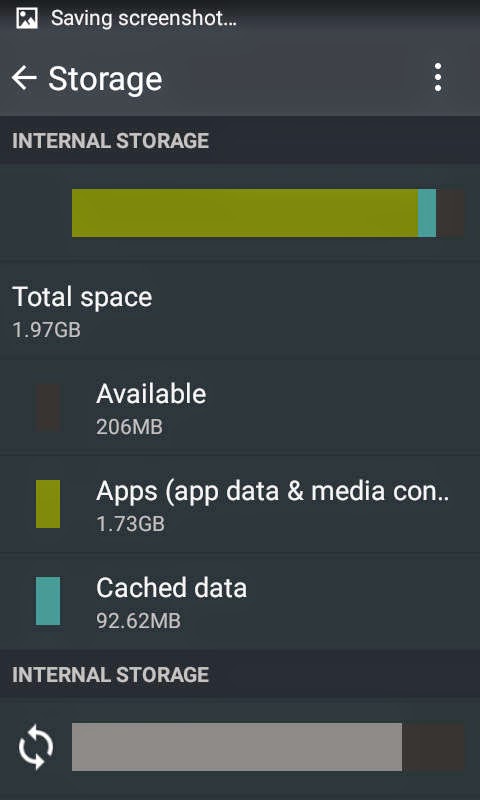
  • Go to Settings >> Storage
  • Tap on “Cached Data” under Internal Storage
  • Press “OK” to clear cache
  • Now reboot and try to install the App from the Google Play Store


I hope the above solutions helped resolve this error for your Android Smartphone or tablet. If you have any other 923 error fix, please mention them in the comments.


Note that this error is common mostly in the Jelly Bean operating system so if you update to the latest Android 4.4 Kit Kat or Android 5 Lollipop, you may stop getting this error. Some devices which have been affected by the 923 error include Moto G, Samsung Galaxy S5, Galaxy S4, Galaxy S3, Galax S2, Nexus 4, Nexus 7, HTC One X, LG L5.  Many users have complained of the 923 error while to download Whatsapp, Facebook, Blackberry Messenger etc.


download now

Read More

Sunday, September 25, 2016

How to fix error 920 in Google Play Store

How to fix error 920 in Google Play Store


The error 920 is another common Google Play Store related error. This bug prevents you from downloading or updating your apps & games from the Android market. This issue is also common in in Cyanogenmod based devices like OnePlus One. The fix for error 920 is the same as that of error 963 and the infamous error RPC:S-5:AEC-0.  All you need to do is clear some cache and delete/re-add your Gmail account in the settings. First thing youd want to try is rebooting (restarting) your android device and then installing the app causing the error. If that didnt work,  here are the simple steps to resolve or fix error 920 in Android Google Play Store:

How to Fix App Error 920 in Google Play Store  

Update for "Gmail" could not be downloaded due to an error. (920)


Method 1: Uninstall and Re-install the app or game causing error
  • go to Settings >> Apps >> All
  • scroll and find the App giving the error 920 >> Select "Uninstall" 
Method 2: Clearing Cache and Data 
  • go to Settings >> Apps >> All
  • scroll down and select "Gogle Play Store >>  Clear Cache and Clear Data
  • open Google Play Store and try to download/update the app or game


Method 3: Removing and re-adding Google account
  • go to Settings >> Accounts >> Select "Google"
  • select your Gmail account 
  • Press menu and select "Remove acccount"
  • optionally, do a reboot
  • Again, from Settings >>  Under "Accounts" >> select "Add account" >> Select "Google"
  • Now simply add back your Gmail account deleted earlier
  • Open Google Play Store and download or update the app  

One of the above three methods have worked perfectly for most users. The third method is popular but first two are shorter so you could give them a try. Did this fix solve error 920 for your Android? Let us know along with your device model and operating system. HTC One,  Galaxy S4, Nexus 5 users have widely reported this error. Whatsapp, Facebook, Gmail app installation are also frequently affected by this error. 

If you have an alternative or a more permanent solution, drop it in the comments. 


Related Error:
Unknown error code during application install: "920"


download now

Read More

Saturday, September 24, 2016

How to Fix Error Code 504 in Google Play Store

How to Fix Error Code 504 in Google Play Store


The Error 504 is a Google Play Store gateway error that occurs due to slow internet connection on your Wi-Fi or mobile data. This is the error message I received while trying to install Facebook via Google Play store: Cant install app. "Facebook" cant be installed. Try again, and if the problem continues, get help troubleshooting. (Error code:- 504). One of the signs of a slow connection is slow loading of normal webpages. Try opening google.com on your Android browser, if it takes longer than normal to load the page, then your connection is slow and when you try to download or update large Android apps or games in such a connection, you will get the unknown error code 504 in Google Play. Users have reported this error while trying to update/download apps like Facebook, Chrome, Titanium Backup, Viber and so in google Play.

This error generally occurs while downloading or updating apps while the internet is slow. This issues has affected many android devices running different OSs like JellyBean 4.2, KitKat 4.4 and Lollipop 5.0. Most of the time, Google Play Store error 504 goes away once your network is back to normal. If youre getting this error despite a normal internet speed try the following method to fix error code 504 in Google Play Store:

How to Fix Google Play Store Error 504 during app install & update

App cant be installed Error Code -504 in Google Play Store
Google Play Store Error Code: -504 while installing Facebook 

Method 1:Turn off and turn on Wi-Fi

This is basically to see whether your wi-fi is working as normal. 
  • First turn off your router, wait for 30 secs and then turn it back on
  • Now, turn off your smartphone or tablets wi-fi and then turn it back on
  • Connect to your Wi-Fi network
  • Open Google Play and try to update/install the app

Method 2: Turn off and turn on mobile data

Sometimes the problem can be with your home or office internet connection. You can simply turn on mobile data and try to download and install your app from Google Play Store. However, some mobile service providers charge high fees on mobile so only use mobile data if you can afford it. If your device is still unable to connect via mobile data, turn it off and on and check. 
  • You can turn off mobile data or the entire network via Aeroplane mode in the quick settings
  • If you dont know how to use Aeroplane mode, go to Settings >>Mobile Networks >> Disable Data
  • Now turn your mobile data back on and try to run the installation

Method 3: Clearing Cache and Data of Google Play Store


This is the most used method for fixing many Google Play Store error codes and error messages.
  • Go to Settings >> Apps >> Swipe and select "All"
  • scroll down and select "Google Play Store" >> Clear cache and Clear Data
  • again, from "All" >> scroll down and select "Google Service Framework" >> Clear Cache and Clear Data
  • Now, open Google Play Store and update or download your app or game 
Related: How to fix com.android.vending has stopped Google Play error

Please note that the above methods might not work for everyone but they have worked for most. Most of the times, this error just automatically resolves after your network speed is normalized. If you have other possible  solutions for the 504 Error in Google Play Store please let us know in the comments. 

download now

Read More

Thursday, September 22, 2016

Free Download Emily Wants To Play Full Version

Free Download Emily Wants To Play Full Version


Free Download Emily Wants To Play - RonanElektron

        Dunia game genere horror memiliki satu lagi judul game yang recomend untuk dimainkan. Nama nya adalah Emily Wants To play. Bercerita tentang sebuah game yang metode permaiannya mirip petak umpet. Namun dalam game ini anda juga harus menemukan beberapa petunjuk agar bisa mengetahui misterinya. Ketegangan akan kamu rasakan selama memainkan game ini. Download dan rasakan sensasinya!


Minimum System Requirements:
OS: Windows 7
Processor: 2+ ghz dual processor - Intel i5 or AMD equivalent
Memory: 4 GB RAM
Graphics: 2GB video ram - will work on less, but wouldnt look too good.
DirectX: Version 10
Storage: 5 GB available space

Recommended:
OS: Windows 10
Processor: 2+ ghz quad procesor - Intel i7 or AMD equivalent
Memory: 8 GB RAM
Graphics: 4GB video ram
DirectX: Version 11
Storage: 5 GB available space


Screenshot:

Free Download Emily Wants To Play - RonanElektron

Free Download Emily Wants To Play - RonanElektron

Free Download Emily Wants To Play - RonanElektron

Free Download Emily Wants To Play - RonanElektron

Free Download Emily Wants To Play - RonanElektron


Download Link:
Download Emily Wants To Play


*Note: Jika muncul hitungan mundur 5 detik, ditunggu aja sob, lalu klik SKIP AD

Free Download Emily Wants To Play - RonanElektron

download now

Read More

Tuesday, September 20, 2016

BTD5 Play for FREE UNBLOCKED

BTD5 Play for FREE UNBLOCKED


download now

Read More

Sunday, September 18, 2016

How to Fix Error 492 on Google Play Store

How to Fix Error 492 on Google Play Store


We have a simple fix for app could not be downloaded due to error 492 in Google Play Store. This Android Error prevents users from updating, downloading or installing apps and games from the Play Store.  Its weird that this error only affects selected apps whereas other apps install just fine. So what are the solutions and possible methods to resolve this error? The solution involve the similar steps used to fix Android error 498, which is to clear app cache and data of Play Store and other similar Google apps. Here are the easy steps to fix error 492 in Google Play Store and also on MIUI based Mi-Market:

How to fix Google Play Error 492 on Android 

Example errors:

Update for "YouTube" could not be downloaded due to an error (492)

Update for "Clash of Clans" could not be downloaded due to an error (492)

"Hearthstone: Heroes of  Warcraft" could not be downloaded due to an error. (492)

Other Apps/games affected by Error 492 include Facebook, Viber, Whatsapp, Hearthstone:Heroes of Warcraft, Asphalt 8, Dead Trigger and so on. 

screenshot of google play error code 492


Solution 1: Re-installing the App or Game

If you are getting this error while trying to update, first uninstall the app and then re-install it from Google Play Store. Also, make sure to check that your internet connection is not slower than usual.


Solution 2: Clearing Cache and Data 
This is the most common approach to fix Android error messages and error codes during app installation in Google Play Store.
  1. Go to Settings >> Apps >> All
  2. Scroll down and select "Google Play Store"
    • Select "Clear Cache" and "Clear Data"
  3. Scroll down and select "Google Services Framework"
    • Select "Clear Cache" and "Clear Data"
  4. Now open Google Play Store and update or install your app (or game)
Additionally, you may have to uninstall updates for "Google Play Store"  on Step 2 above. That will restore the factory version of the Play Store. Dont worry, the Play Store app will automatically update later. 

Solution 3: For Custom ROM users
Custom ROM users use a "recovery" menu to flash new ROMs (operating systems) or other additional software tweaks via zip files. People who use customized Android OSs like Cyanogenmod are tech savvy and they will know what the below steps are, but newbie flashers may need to do som research. 
  • Turn off your phone and boot into recovery
    • Search online for the proper button combination to enter recovery mode
  • Use volume keys for highlighting menu options
  • Select "wipe cache partition" 
  • Optionally, go to advanced menu and select "wipe dalvik cache"
  • Reboot system
  • Open Google Play Store and Download your app 

Solution 4: Formatting SD Card

If you are running custom ROM on your rooted Android device, then you can probably install APps to SD. When you have a corrupt SD Card and try you install apps (games) in it, you can get error 492. Format your SD Card or run on a disk check to find and solve system file errors. To check for errors, connect your device to your PC or simply take out the SD Card and insert it into your PC. Then right click on the removable storage and click Properties. Go to Tools >> Click "Check". You might have to replace your SD Card if it has lots of bad sectors.

If you are still getting the error code 492, you maybe able to fix it my using the methods on these posts:

Related Android Error Codes and Fixes
How to Fix  Google Play Error 907 
How to Fix Error 963 in Google Play
How to Fix Error 489 in Google Play
How to Fix Error 906 in Google Play 


download now

Read More

How to fix error 906 in Google Play Store

How to fix error 906 in Google Play Store


In this post we will read the methods to fix app could not be downloaded due to an error (906) in Google Play Store for Android. The fix for download failed error 906 fix is similar to that of error 963. The common method used to solve fix these error codes is to uninstall Google Play Store updates and clear data of Google Play Services. Some have also resolved this issue by unmounting SD card before downloading an app or game. The step by step instructions on how to fix error 906 in Google Play Store is mentioned below:

How to fix error 906 in Google Play Store [Best Solution]


Method 1: Clearing Cache and Data 
  1. Go to Settings >> Apps >> All >> Scroll down the list and select "Google Play Store"
    • Select "Clear Cache" and "Clear Data"
  2. Similarly, from All >>Screoll down and select "Google Play Services"
    • Select "Clear Cache" and "Clear Data"
  3. Now open Google Play Store and try to update or install the app/game that was initially giving you the error 

Method 2: Unmounting SD Card
  1. Go to Settings >> Storage >> Scroll down and select "Unmount SD Card"
  2. Open Google Play Store and then download or update the app or game
  3. After successful update or installation, go back to Storage  >> Scroll down and "re-mount the SD card"

Method 3: For error 906 during update of apps-games installed in SD Card
  1. Go to Settings >> Apps >> All >> scroll down and select the app (game) thats giving the error 906
  2. Select "Move to internal storage"
  3. Open Google Play Store and run update the app (game)
  4. After successful update, move the app back to SD Card.

Method 4: Uninstalling Google Play Store updates (high success rate)
  1. Go to Settings >> Apps >> Scroll down and select "Google Play Store"
  2. Select "Uninstall Updates"
  3. Optionally, go to settings >> apps >> scroll down and select "Google service framework"
    • Clear Data and Cache
  4. Open Google Play Store and update or download the app (game) that was giving you error 906


Hit the social media buttons if the above solutions fixed Error 906 for your Android device. Let us know if you have any other steps/methods to resolve this Google Play Store error.


download now

Read More

How to Fix Error 905 in Google Play Store Android Lollipop KitKat Marshmallow

How to Fix Error 905 in Google Play Store Android Lollipop KitKat Marshmallow


Many Android 5.0 Lollipop users are reporting error 905 in Google Play Store while installing or updating apps/games. Heres the error message: "app" could not be downloaded due to an error (905). I am not exactly sure what this error code means but it may be caused by poor memory management or memory leak on a buggy OS. I got the Google Play error 905 while downloading an app on my phone that had recently received Android 6.0 update. The download bar would show progress but it would stop downloading right at the end and then this error message would pop up. Sometimes the error would appear right after tapping the "install" button in Google Play Store.  

Android users are getting this error mostly while downloading large apps or games like Microsoft Power Point, Microsoft Word, Excel, Asphalt 8, Monument valley, Hearthstone Heroes of Warcraft, Mortal Kombat X etc.  After some research, I’ve found some quick methods to fix error 905 in Google Play Store. These fixes should also work for  devices running Android 4.3 JellyBean Android 4.4 KitKat, Android 5 Lollipop or  Android 6 Marshmallow.


How to Fix error 905 in Google Play Store Android


Method 1: Keeping screen on during app update or download in Google Play Store

  1. Go to Settings >> Display >> Screen timeout (Sleep) >> Keep screen turned on (or set timer to the highest possible value) 
  2. Open Google Play Store >> Download your app that was causing error 905
  3. Do not go back or close Google Play Store until the download and installation is completed.

Method 2: Close background apps

  1. Sign out of apps that run in the background
  2. Go to Settings >> Apps >> Running >> Check apps that are taking too much MB or memory >> Stop or sign out of these apps
  3. Open Google Play Store and try to install/update app 


 If the above methods didn’t work, try the one below

Method 3: Uninstalling updates for Google Play Store
  1. Go to Settings >> Apps >> All Scroll down till you find “Google Play Store” 
  2. Select “Uninstall updates” Open Google Play Store >> Install or update the app 
  3.  Note: Your Google play Store will automatically update later but you will no longer get the 905 error.

Common devices experiencing this error include Nexus 7, Nexus 5, Galaxy S4, S5, S6, HTC One, Xperia Z2 etc. If you’ve managed to solve  Google Play error code 905 through other alternative methods, let us know about it in the comments. If any of the above method worked for you, hit the like buttons.


download now

Read More

Friday, September 16, 2016

How to fix Android Error 491 in Google Play Store

How to fix Android Error 491 in Google Play Store


The Google Play Error 491 and 492 are common errors that dont let users install or update apps from the Android app Store. This is a minor issue and can be easily solved by removing and adding back your main Google(Gmail) account. Basically the error fix involves the same method as for solving other Play Store related errors like RPC:S-5:AEC-0, Error 907 and Error 963. Another possible fix for Error 491 in Google Play is to wipe cache partition and dalvik cache via recovery, but the first method mentioned below is much simpler.

How to fix Google Play Error 491 and Error 492

All you need to do is remove your Gmail account from settings and then add it back, The whole thing takes barely 5 minutes. If you already know how to do it, no need to read further, If not, here is the step by step instruction: 
Steps to fix error 491 in Google Play Store
  1. Go to Settings >> Scroll down to "Accounts"
  2. From your Accounts select Google>>Remove your main Gmail Account (Press menu key and select remove account)
  3. Now reboot your Android phone or tablet
  4. After reboot, add back your Gmail account
  5. Run Google Play Store and install the app

I hope the above solutions worked for you.  If it fixed the issue, please like this post and drop a comment. If you have any other solution for the Android Error 491 also let us know about it in the comments. 


download now

Read More

Wednesday, September 14, 2016

How to fix error 925 on Google Play Store

How to fix error 925 on Google Play Store


The error 925 is a Google Play store error affecting newer Android operating systems like Android 4.4 KitKat, 5.0 Lollipop and 6.0 Marshmallow. This error message pops up during app download or update, rendering the installation process unsuccessful. Example- “Whatsapp messenger” could not be downloaded due to an error (925) or Update for “Facebook” could not be downloaded due to an error (925). The solution for this error is the same as the fix for Google Play Error 927. Below are two simple methods that will quickly fix error 925 on Google Play Store Android:


First thing you’d want to try is to simply cancel all downloads or updates and then download each app or game one by one in Google Play Store. If that didn’t work here are the solutions for Google Play Error 925:

How to Fix Google Play Error 925 

Clearing data of Google Play Store

Method 1: Clear Google Play Store Cache

  1. Go to Settings >> Apps >> swipe left and go to “All”
  2. From the list, scroll down and select “Google Play Store”
  3. Tap “Clear Data”
  4. Open Google Play Store and then download your app or game
If the error persists, you can also try repeating the above steps to clear data for “Google Service Framework”.


Method 2: Removing and re-adding Google account

This method has been widely used to fix many Google Play store errors like the infamous RPC-S:7 RPC-S:5 and RPC-S:7 errors
  1. Go to Settings >> Accounts >> Select “Google”
  2. Tap on your Gmail address (Google account)
  3. Then press menu button on the phone or the dotted icon on the top right screen
  4. Select “Remove account” >> Okay
  5. Now again go to Accounts >> select “Add Account” >> Select “Google”
  6. Simply add back the previous gmail account
  7. Now open Google Play Store and download your apps/games

I hope the above one of the methods fixed error 925 on Google Play for your Android device. If you have any other solution or fix, please mention them in the comments.

Similar Google Play Errors and Fixes

  • How to fix error 963 in Google Play
  • How to fix error 907 in Google Play
  • How to fix error 924 in Google Play
  • How to fix error 920 in Google Play


download now

Read More

Monday, September 12, 2016

Error Fix Unfortunately Google Play Store has stopped Android

Error Fix Unfortunately Google Play Store has stopped Android


Many users who recently updated their Android system or upgraded to a newer version of the Android operating system are experiencing the "Unfortunately Google Play Store has stopped" error. This error pops up every time you open the Google Play Store app to download or update an app, and then it suddenly force closes. After this error you may also get another one that says, "Google Play Services has stopped error". These errors are particularly frequent if youve just flashed a custom ROM (example: Cyanogenmod) with an incompatible GAPPS package. Here are the quick methods to solve/fix unfortunately Google Play has stopped error in Android:


How to fix unfortunately Google Play has stopped error

Method 1: Clear data for Google Play Store

  1. Go to settings >> Apps >> All
  2. Scroll down teh list of apps and select "Google Play Store"
  3. Tap "Clear Data"
  4. Restart device
  5. Now open Google Play and try to download/update an app
  6. If youre still getting the error, try the solution here: link
  7. If nothing works and youre not rooted, a factory reset is the last resort.
Method 2: For Custom Rom users
  1. Reboot into recovery
  2. Go to Wipe/format options and select "Wipe Cache" and "Wipe Dalvik Cache"
  3. Reboot system
  4. Open Google Play Store and download/update the app
  5. If you get the error, reflash your Gapps package again and wipe dalvik cache.
  6. If youre still getting the error proceed to steps below
  7. Download another compatible GAPPS package  for your custom ROM
  8. Reboot into recovery 
  9. Select install Zip and then flash the new GAPPS package
  10. Go to Wipe/format options and select "Wipe Cache" and "Wipe Dalvik Cache"
  11. Now reboot system and try to download the app via Google Play
If you are still getting the Play Store has stopped error after reflashing or flashing an entirely new Gapps package, you will have to flash an entirely new ROM followed by a compatible Gapps package. Then simply clear Cache/Dalvik Cache and reboot system. The error should now be solved.


download now

Read More

Thursday, September 8, 2016

How to Fix app could not be downloaded Error 403 in Google Play Store

How to Fix app could not be downloaded Error 403 in Google Play Store


The app could not be downloaded due to error 403 is a Google Play Store error that occurs while installing or updating any app or game. Chrome, Gmail, Flipboard, Viber, Clash of Clans, Hearthstone, Facebook app users have widely reported this error. The 403 error is less common in the latest Google Play Store app  (on OSs like Android 5.0 Lollipop and Android 6.0 Marshmallow) so make sure your version of the app is also updated. If you are still getting this error after performing the update. After researching on various Android help forums, I have compiled here a list of possible fix for the error 403 in Google Play:

How to fix error 403 in Google Play Store (app could not be downloaded error)


Method 1: Remove and re-add Google account 

This is a method used to solve most Play Store related error codes. These steps can be used to fix Error 927 and RPC:S-5:AEC-0, RPC:S-7:AEC Errors .
  1. Go to settings >> accounts >> Google  
  2. Select your Gmail >> click menu and select “Remove account” 
  3. Go back to settings >> Apps >> All>> select Google Play Store >> Clear cache and clear data 
  4. Again, from settings >> accounts >> select “add account” >> Select “Google” >> Add back your Gmail  
  5. Open Google Play Store app and install/update the app (game) that was giving you the error. 


 Method 2: Add Alternate Google account

  1. Some users have also solved this issue by using an alternative Gmail account for Google Play Store. 
  2. Create a new Gmail account 
  3. Go to settings >> Accounts >> select “add account” >> Add your new Gmail 
  4. Open Google Play Store >> Press Menu and select your new Gmail account 
  5. Install or update your app (game). 

 Method 3: Clear Proxy 

  1. Settings >> Wireless and Networks >> Select “More” >> Mobile Networks 
  2. Select APN >> Clear Proxy (simple click "proxy" and delete the address)
  3. Open Google Play app and then try to install the app/game. 
Related: How to fix update/download error 400 in Google Play Store

This is a fairly common issue in devices running JellyBean 4.2 and KitKat 4.4 operating systems. I havent heard of Lollipop 5 users reporting this error.  Hope one of the above methods solved the error code 403 for your Android device. If you have any other methods or solutions please post them in the comments below.


download now

Read More

Fixed DF DLA 11 DF DLA 12 error in Google Play Store

Fixed DF DLA 11 DF DLA 12 error in Google Play Store


Error retrieving information from server [DF-DLA-11] [DF-DLA-12]. Both of these Google Play Store errors pop up during app installation and specially during an app update. The first thing youd want to check is your internet connection. If your internet connection is too slow it may return the above errors. Also restart your phone or tablet and see if that fixed these Google Play errors. If the issue is still unresolved, fear not, this post has several easy solutions for these errors.


Another reason these errors pop up is if you have too many large size apps updating at once. In such case,  it is recommended that you update your apps one by one in Google Play Store. If the problem still persists, here are some possible ways to fix error retrieving information DF-DLA-11 and DF-DLA-12 errors in Google Play Store:

Screenshot showing Google Play update error[DF-DLA-11


Screenshot of Google Play Store download error DF-DLA-12


Method 1: Clearing Google Play Store app data

This solution involves clearing data for Google Play Store and Google Service Framework. This is the most used error fix on Android devices. It will come handy for other Android error codes as well.
  1. Go to Settings >> Apps >> All
  2. From the app list, select "Google Play Store"
  3. Tap "Clear Data"
  4. Again, from All >> select "Google Service Framework" >> "Clear Data"
If the error message is still popping up, also uninstall Google Play Store updates by navigating to Settings >> Apps >> All >> Google Play Store >> "Uninstall Updates". 


Method 2: Resetting app preferences

This is the second most effective solution for Google Play server errors. You will resetting your the settings of all of your apps and games. Note that this method wont remove data, multimedia files, login info or save games from your device.

Go to Settings >> Apps >> Press Menu or the three dots on top right >> Tap "Reset app preferences"

Method 3: Clear App Data 

While your app is installing or updating, cancel it by taping on the "x" icon. Now run the installation
once more. If you still getting the DF-DLA-11 error for a particular app, uninstall the app completely and then re-install it via Google Play Store. If its a system app, you wont be able to uninstall it, so youll just have to clear its data. To clear app data:
  • Go to Settings >> Apps >> All
  • Scroll down and select the app that you are unable to update or install due to this error
  • Tap "Force Stop" >> "Clear Data"
  • Open Google Play and update the app

Method 4: Connect to a different network

Firstly, turn off your router and turn it back on after 30 seconds. A lot people may get server errors because of temporary connection slowdown, and in such cases you may need to reset your router. Connect to Wi-Fi and see if you still get the DF-DLA-12 error while updating your app or game in Google Play.If you are connected to your Wi-Fi, switch to mobile data or a different Wi-Fi network and run the app update/installation on Google Play. The error may have been caused by a faulty network connection.

Method 5: Check your storage

Do you have a lot of apps installed? Maybe you have too many junk files. Try cleaning them up using apps like cleanmaster. You can also uninstall apps or games you rarely run.

    Final solution: Delete Google account 

    On this method, you will delete your Google account from settings and then simply add it back. This has solved many similar "error retrieving information from server" errors in Google Play store. The complete steps for deleting and adding your Gmail account on Android devices is mentioned here:  How to Fix Error 489 in Google Play Store.


    One of the above methods will likely solve this error and if you have any other fix for this Android error, please mention them in the comments. 


    download now

    Read More

    Wednesday, September 7, 2016

    How to fix Android error 926 in Google Play Store

    How to fix Android error 926 in Google Play Store


    Google Play Store Logo

    The Application could not be downloaded error 926 is a common Google Play error that has recently WhatsApp. More android games and apps are affected by this Play Store error. You can use similar methods as the ones used to fix error code 927. There are several methods to fix the Google Play Error Code 926, but the most effective ones are posted below. The same methods can be used to solve (Error code: -20).
    resurfaced. Due to this error users are unable to update or download apps like Facebook, Viber, HangOut and Google Play Music. The error can also pop up when you are trying to update your app. Example: Update for "Gmail" could not be downloaded due to an error (926)

    Before starting the steps below methods, try uninstalling and reinstalling the app and see if that solves the issue. Also, sometimes it might be Google server unavailable issue, which normally resolves automatically after few minutes.


    First Method: Clearing Data of Google Play and Google Services Framework

    This is the most widely used solution for most Google Play Store or Android App Market errors.

    1. Go to Settings >> Apps >> All
    2. From the list of apps, scroll down and select “Google Play Store”
    3. Tap “Clear Data”
    4. Now go back to the list of apps >> Select “Google Services Framework”
    5. Tap “Clear Data”
    6. Before doing the step below, backup everything in your Downloads folder.
    7. Again from the list of apps >> Select “Downloads”
    8. Tap “Clear Data”
    9. Now exit Settings and try downloading or updating the app from Google Play.

    Method 2: Removing and adding back Gmail account

    Another common method that has worked well to fix Google Play Error 927.

    • Go to Settings >> Accounts >> Select “Google”
    • Tap on your Gmail account (linked to Google Play)
    • Press Menu >> Tap “Remove account”
    • Again from Settings >> Accounts >> Select “Add account”
    • Select “Google”
    • Simply add back the account you deleted on step 3.


    Method 3: Uninstall Google Play Updates

    It is also possible that the error is caused by a bug in the latest Google Play App. Hence, reverting to the original version of the app may resolve the error, although temporarily since Google Play will automatically update itself.

    1. Go to Settings >> Apps >> All
    2. Scroll down and select “Google Play Store”
    3. Tap “Uninstall Updates” >> Tap “Ok”
    4. Now open Google Play and download/update your app


    One of the above methods have worked very well (Especially method 2) for most users. If you have any other fix or solution for Google Play Error 926, please mention them in the comments.


    download now

    Read More

    Monday, September 5, 2016

    How to Fix Error 194 in Google Play Store for Android smartphones

    How to Fix Error 194 in Google Play Store for Android smartphones


    The post has been updated and moved: Fix Google Play Store Error 194 on Android

    download now

    Read More