Showing posts with label apps. Show all posts

Wednesday, September 28, 2016

Android apps that play only audio from video files

Android apps that play only audio from video files


A lot of users have been asking me if there is an Android app that plays only audio from video files. Most of the users wanted a way to listen to just the audio of YouTube videos theyd downloaded. You can find a lot of important and free audio books, lectures and tutorials on YouTube, which can be downloaded via video downloader plugins in Firefox browser. Such YouTube files will be downloaded in either MP4 or FLV format, and by default it opens on a video player app even though you just want to listen to the music or audio of that file. Fortunately, there are a couple of Android apps that play only audio from video files of different formats. This means audio playback will continue even when the screen is turned off.


How to listen to only audio of videos with screen turned off using MX Player

MX Player is probably the most downloaded video player app on Android. What many don’t know is
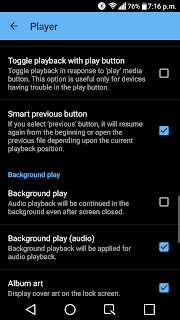
Background playback turned on in MX Player settings
that MX Player has a feature that allows you to play only the sound track of the video in the background i.e. when the app is minimized. This allows you to continue to listen to the audio from video files even when the screen is turned off. To use this feature, follow these steps:
  • Download and open MX Player
  • Press menu (three dot icon on the top right) >> Tap “Settings” >> Tap “Player”
  • Scroll down and select “Background play”


That’s it now audio playback will be continued in the background even after screen is closed.

Note: There is no playlist feature in Mx Player so you will have to use folders to organize your video files.

Is there a video player out there that will let me play only the audio track of the video, or at least turn off the screen while Im playing it?
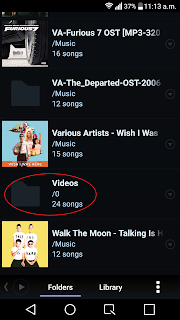
How to Play only audio track of videos via Poweramp music player

Video files detected as songs in Poweramp Folders Poweramp will detect all your video files as songs and play it just like any other audio files. Though Poweramp is a paid app, it will give you more audio control that Mx Player. Another drawback of MX Player is that it doesn’t have a built-in playlist creator, so you will have to manage videos in separate folders if you want some videos to play together. On Poweramp you can manage the video files just like audio files and add them to playlists and also tweak the audio to your liking using the built-in equalizer.


While Poweramp will automatically find your video files saved in the internal storage, it may not detect it files inside a folder in the external storage or SD card. In that case, go to settings >> Folders and library >> Music Folders. Expand folders and then choose the appropriate folder in the external storage. Now, Poweramp will scan that folder as well.

If you have setup a default video app, you will need to reset or clear the default app preference. Read  this post: How to remove default app settings on Android 

If you know any other Android apps that lets you play audio from video file, let us know in the comments. We will test such apps and add it to this post.


download now

Read More

Thursday, September 15, 2016

How to fix Error 80004005 while updating installing apps on Windows 10

How to fix Error 80004005 while updating installing apps on Windows 10


The Error 0x80004005 is a frequently occurring error that prevents you  from downloading, installing or uptaing apps on Windows apps store. This error is also common in the app store or game store in Xbox 360 and Xbox one. This error is usually caused when you dont have access to the internet. The reasons you may not have your Wi-Fi connected to the internet could be ISP issue, router error or simply some minor operating system bugs. Below are some of the methods you can try to fix the Error 80004005 while updating or installing apps in Windows Store or Xbox store.

How to Fix error 80004005 in Windows Store or Xbox Store


Try a different Wi-Fi/internet connection

The most common cause of the 0x80004005  is a bad internet connection. The first thing you should do is open your browser and run google.com. Is the page opening? If youre getting some kind of server error or no internet connection error, then the problem is with your home internet connection. Sometimes, it can be resolved by simply turning off and turning on your router. Many times it could be a problem with your ISP who is unable to provide you internet connection. (Forgot to pay the bill?). Call them and try to resolve the issue. To check the connection status, you can also look at the Wi-Fi icon on your phone, tablet or PC . If theres no connection, the Wi-Fi icon will have a small cross over it or you can hover over  the icon to see whether "internet access" is available. 

If you are trying to update or install apps on your Windows smartphone or tablet, switch to mobile data connection (3G/4G) and now run the installation from the Windows App Store. Note: It is recommended you use mobile data connection only if youre subscribed to an unlimited data package or a reasonably priced plan because large apps or games can use up your mobile data fast.

Access the game store from your browser

If you are getting the error 0x80004005 while trying to sign in to your Xbox account in your Xbox console, you can open xbox.com  on your desktop browser and sign in. Click "Games"  >> Choose your device >> browse games  >> click "Download to Xbox 360". This will start the download.

Shutdown and Restart your device

Sometimes the connection problem may be a minor bug affecting your Windows PC, mobile or Xbox console. Turn the PC or Xbox off and then turn it back on. Connect to the internet, open the Windows Store and try to download/update the app or game,


download now

Read More

Monday, September 5, 2016

How to turn off notifications from particular apps on Android

How to turn off notifications from particular apps on Android


The instructions on this tutorial is for devices running Android 4.4 KitKat, Android 5.0 Lollipop, Android 6 Marshmallow and newer operating systems.  Are you bothered by constant notifications from selected Android games like Asphalt 8, Champions, Clash of Clans and notifications from apps like Twitter, Flipboard, Viber, Whatsapp, Facebook and so on? Android has a built-in features to disable or turn off app notifications. You can disable notifications from any particular Android application or game. The notification will remain disable even after you restart or turn off your phone. You will have to enable it from the settings if you want to start seeing the notifications again.


Here are the steps to disable app notifications on Android phones and tablets:
  1. Go to Settings >> Apps 
    Turning off or blocking notifications from Asphalt - Android
    Blocking notifications from Asphalt 8 - Android 6 Marshmallow
    • Settings >> General >> Apps (on LG devices)
  2. Swipe left to get to"All" apps list (on some devices youll get directly to apps list)
  3. Scroll down and select "Viber" or any other app/game whose notifications you want to stop
  4. On Android Kitkat, Tap on "show notifications" and select "OK" (show notification is right below "Force Stop" option)
  5. On Android Marshmallow,  Tap on "Notifications"  >> Turn on "Block" notifications 

Now notification wills top showing up on your lockscreen and notification bar on the top of your Android display. You will also stop getting sound alerts after blocking notifications for the selected apps.


download now

Read More

Wednesday, August 31, 2016

Best Android hacking apps 2016

Best Android hacking apps 2016


Top 9 Android hacking applications 2016

Android has emerged as the top mobile operating system, we have seen a great rise in the Android hacking apps. For our readers, we have prepared a list of the best hacking apps for Android that can be used by a technology enthusiast, an IT security administrator, or an ethical hacker. 

Best Android hacking apps 2016

1) AndroRAT - stands for Android and RAT (Remote Administrative Tools). This top hacking tool was released a long time ago as a client/server application. The app aims to give you the control of the Android system remotely and fetch the information from it. This Android app runs as a service right after the boot. So, a user doesn’t need to interact with the service. The app provides you the ability to trigger the server connection by a call or SMS.

The features in this useful Android hacking app include collecting information like contacts, call logs, messages, and location. The app also allows you to remotely monitor received message and state of phone, making a phone call and sending texts, taking picture from camera, opening URL in the default browser etc.

Link : https://github.com/wszf/androrat

2) Hackode - is an Android app which is basically a collection of multiple tools for ethical hackers, IT specialists, and penetration testers. In the app, there are three modules –Reconnaissance, Scanning, Security Feed — available in the application.

With this app, you get the functionalities like Google hacking, SQL Injection, MySQL Server, Whois, Scanning, DNS lookup, IP, MX Records, DNS Dif, Security RSS Feed, Exploits etc. It’s a great Android hacking app to start with and it doesn’t ask for your private information to operate.

Link: https://play.google.com/store/apps/details?id=com.techfond.hackode

3) zANTI - is a reputed Android hacking suite from Zimperium. This software suite comes with multiple tools that are widely used for penetration testing purposes. This mobile penetration testing toolkit allows the security researchers to scan a network easily. This toolkit allows the IT administrators to simulate an advanced hacking environment to detect multiple malicious techniques.

zANTI could be called an app that brings the power of Backtrack on your Android device. As soon as you login into zANTI, it maps the entire network and sniffs the websites being visited along with their cookies — thanks to ARP cache poisoning on devices.

The various modules in the app are network mapping, port discovery, sniffing, packet manipulation, DoS, MITM, and more.

 Link: https://www.zimperium.com/zanti-mobile-penetration-testing

4) FaceNiff - is a top Android hacking app that allows you to intercept and sniff your WiFi network traffic. This tool is widely used to snoop into people’s Facebook, Twitter and other social media websites using your Android device. This hacker-favorite tool steals cookies from WiFi network and gives an attacker an unauthorised access to victim’s account.

FaceNiff is developed by Bartosz Ponurkiewicz — the same developer who wrote Firesheep for Firefox hacking on desktop.

Link: http://faceniff.ponury.net/

5) Droidsheep - is an effective hacking app developed for security analysts interested in playing with Wi-Fi networks. The app has the ability to hijack the web session profiles over a network and it works with almost all services and websites.

As you fire up the Droidsheep app, it acts a router that monitors and intercepts all the Wi-Fi network traffic and fetches the profiles of active sessions. With this app, one can sniff Facebook, LinkedIn, Twitter and other social media accounts.

DroidSheep Guard, another version of app, helps you to detect ARP-Snoofing on the networks i.e. the attacks by FaceNiff, Droidsheep, and other software.

Link: http://droidsheep.de/

6) DroidBox - is an app that offers dynamic analysis of Android applications. Using the app, one can get a wide range of results about the hashes for the APK package, network traffic, SMS and phone calls, information leaks via different channels etc.

This top Android hacking application also gives you the ability to visualize the behaviour of an Android app package.

Link: https://code.google.com/p/droidbox/

7) APKInspector - is an app that allows you to perform reverse engineering tricks (sample BMT PLDT WiFi apk). With this app, you can get the graphic features and analysis functions for the users to get a deep insight. This powerful Android hacking tool helps you get the source code of any Android app and visualize the DEX code to erase the credits and license.

 Link: https://github.com/honeynet/apkinspector/

8) Nmap - One of the most popular network scanning apps for desktop can also be used on Android operating system. Nmap works on both non-rooted and rooted phones. If you are a beginner Android hacker, this hacking app app is a must have.

 Link: https://secwiki.org/w/Nmap/Android

9) SSHDroid - is a SSH server implementation developed for Android that allows you to connect your Android device to a PC and run commands like ‘terminal’ and ‘adb shell’ and edit files. It provides an extra security later when you are connecting to a remote machine.

The app provides features like shared-key authentication, WiFi autostart whitelist, extended notification control etc,


Note: Some of this apps needs a rooted phone, this list just for educational purposes.

download now

Read More

Tuesday, August 30, 2016

How to Fix error 498 in Google Play while installing apps

How to Fix error 498 in Google Play while installing apps


This is a very common Google Play Related error in Android devices, appearing in this format- Temple Run 2 could not be downloaded due to an error (498). This issue has affected apps/games like Candy Crush, Clash of Clans, Plants VS Zombie, Iron Man 3, Zombie Tsunami, Vice City, Angry birds, Zombie Tsunami, Facebook, CSR Racing, and also the Bluestacks app for PC. The solution which has worked for most involves uninstalling Google Play Store update . Read below to find out how to fix Google Play error 498 on your Android device. Note that this solution also resolves the error 491 in Android.

How to Fix Error 498 in Google Play


Method 1: Uninstall Google Play Store updates
  1. go to Settings >> Apps >> All 
  2. scroll down and select "Google Play Store"
  3. select "Uninstall updates"
  4. open Google Play Store and download/update the app or game that was causing error 498
This method reverts the Google Play Store app to its factory version. Your Google Play Store will automatically update later.

Method 2: Clear Cache and Data

Clearing cache and data of Google Play Store, Google Service Framework and Google Play Series, has also helped some users.
  1. go to settings >> Apps >> All
  2. scroll down and select "Google Play Store"
  3. select  "clear cache" and "clear data"
  4. Repeat the above three steps to clear data and cache for "Google Play Services" and "Google Service Framework"
  5. now open Google Play Store and try to install/udpate your app (game)
Lots of users have successfully got rid of the error 498, error 491 and error 492 by using Method 1. If you have found other solutions, drop a comment.


download now

Read More

Friday, August 26, 2016

How to run Android apps and games on Mac and PC

How to run Android apps and games on Mac and PC


Bluestacks, the popular app player for Windows PC, is now available for Mac. The Android emulator allows you to run Android apps and games on OS X and Windows OS. So far on Windows, there are already 90 million users running Bluestacks to play games like Temple Run, Subway Surfer, Angry Birds and Clash of Clans on their PC. So to run Android apps or games on a Mac all you have to  do install the Bluestacks.

Bluestacks App Player

The app supports mouse and keyboard for navigating app menus and entering game commands. Both x86 an ARM based apps are supported. With the Bluestacks app player now Mac users have access to Google Play Store, which has thousands of android apps and games. Your laptops trackpad can be used for gesture controls like pinching and zooming. You can also sync your Android smartphones data with your Mac or PC.

How to run Android apps and games on Mac and PC

Do you want to play Android games and apps on your PC or Mac? All you have to  do is go to the Bluestacks website and download the free app player. After downloading the installation package simple run it and it will do the rest. Now run Bluestacks from the desktop, and download your favorite apps and games right on your PC or Mac.


download now

Read More

Sunday, August 7, 2016

How to clear remove or change default apps in Android

How to clear remove or change default apps in Android


Many people accidentally set some app to open by default in Android. When that happens each time you try to open something that default app is going to open it automatically. For example people might have multiple browsers , video players , picture apps , alarm apps and reading apps installed. Each time u try to open a certain app your operating system is going to check which apps have the permission to handle it and then it gives you a list of apps you can either select to open once or always. If you select "always open" then you will set that app as a default app.  So how to change your default browser, default gallery, default reading app, default picture viewer app etc. First you will have to remove or clear defaults app settings and then set a new app as default. Here are the steps to remove or change default permission from Android app:

How to change default apps in Android 


  • Go to Settings >> Apps >> All
  • Scroll down to the App which you set by default
  • Select Clear Defaults


Well thatt it. Now you can clear default permissions for any Android app and set other third party Gallery, Reading, SMS Text, File explorer or Dialer app as default. For example- when you open a picture, you will be given a list of apps to open it with, and you can choose "always open with" option to set that app as default.

download now

Read More