Showing posts with label error. Show all posts

Wednesday, September 28, 2016

How to fix Warning Camera failed error in Galaxy S7 Edge S6 and S5

How to fix Warning Camera failed error in Galaxy S7 Edge S6 and S5


Barely after 2 months of purchase, my Galaxy S7 Edge got the “Warning: Camera Failed” error that would not allow me to take any photos. Every time I opened the camera app, the screen would go black and give the camera failed warning error. The 12MP, f1.7 lens on Galaxy S7 is one of the best smartphone cameras today and it can even replace your digital cam or even DSLR for normal
Error message after opening Camera app on Samsung Galaxy S7
everyday shots. So, I was bummed when this awesome camera stopped working. Fortunately, this isn’t a hardware fault but an Android software bug common among Samsung Galaxy smartphones. I have listed below all the methods to fix Warning camera failed error on Samsung Galaxy S7, S6 and S5 phones. The method are lined up in the order of their effectiveness as reported by users.

Solutions: Camera failed problem on Galaxy S5, S6 and S7 Edge – Samsung Galaxy Camera app troubleshooting


Method 1: Disable “Smart Stay” feature

Smart stay basically detects your face and keeps the screen on when you are looking at it. So, this isn’t really a feature you need because you can increase the screen on-time or simple tap on the screen to keep it awake. This feature seems to conflict with the camera app of Samsung devices resulting in failed camera error.

  • Go to Settings >> Display >> Turn off “smart stay”
  • Reboot your phone


Method 2: Reset settings:

Resetting app settings is the second most effective solution to camera failed error in Samsung Galaxy devices.

  • Go to Settings >> Scrool down and select “Backup and Reset”
  • Select “Reset Settings” >> Tap “Reset” (Do not select “Factory Reset”)

Now your Samsung app settings will be reset to default and this will fix the Warning: Camera failed error on your Galaxy S7 edge, S6 or S5 smartphone. After this method, you will also need to again add your saved Bluetooth devices and re-enter your Wi-Fi password.


Method 3: Clear data of the Camera app

The clearing cache and data is the most widely used method for fixing Google Play Store related error codes. This might also solve camera app errors.

  • Go to Settings >> Applications >> Application Manager
  • Select “Camera” >> Force stop >> Tap Storage >> Select “Clear Data”
  • Tap “Delete”

Now open the camera app and try taking a picture. If you still get the “Warning: Camera Failed” error message, proceed to the next method.


Method 4: Wipe Cache Partition

Another method to fix Android firmware issues after an update, is to “wipe cache partition” from bootloader.
  • Turn your phone off
  • Hold power key + home key + volume up at the same time to bring up the bootloader
  • Once you reach the bootloader menu, use the volume key to highlight “wipe cache partition”
  • Press power button to select that option.
  • Now reboot system

Hopefully the Samsung Galaxy smartphone camera failed warning will be fixed by one of the methods. If you have alternative solutions, drop us a comment below.

download now

Read More

How to Fix Error 505 in Google Play Store

How to Fix Error 505 in Google Play Store


The Error 505 is a Google Play Store error in Android 5.0 Lollipop and KitKat 4.4. Some apps affected by Error code 505 include Google Play Games, Asphalt 8, Hearthstone, The Walking Dead, Clash of Clans and so on. The fix involves running a simple ADB command in Android SDK, we will come to that later. Many got this error due to the Adobe Air app. So you can try uninstalling the app. This error has been fixed on the latest versions of Android Lollipop so you can also update your version of Lollipop to 5.1 or later to fix it.

This is actually a permission error so clearing cache method may not work. But you can still give it a try. First, clear the cache and data for Google Play Store and Google Service Framework. These methods are explained in detail here: RPC-S:7/RPC-S:5 and Error 963. If those solutions didnt help, try the steps below to fix Google Play Error 505 while installing or updating apps:

How to fix Error 505 in Google Play Store during app download


Method 1: Uninstall conflicting app(s)

If you have multiple apps installed to perform similar function, then the -505 error code maybe caused because those apps are trying to access the same system settings. For example- you may have multiple banking apps installed and both will try to use similar payment settings and protocols. And when these apps are conflicted error 505 is caused. To resolve this issue, simply uninstall the first app and use the other one and vice versa.

Method 2: Uninstall/Re-install

First completely uninstall all the apps that are getting this error in Google Play.  For example if your Blizzard apps are facing error 505, uninstall all of them and reinstall. Also, you may have installed some Android apps from the Amazon store- try uninstalling them and re-installing them via Google Play Store.

Error Formats:  
  • Unknown error code during application install "-505"
  • "Hearthstone: Heroes of Warcraft" cant be installed. Try again, and if the problem continues, get help troubleshooting (Error code: -505)
screenshot- (Error code: -505) while installing Google+ in Google Play

Method 3: ADB Uninstall


Before you begin the steps you have to install the Android SDK on your PC, connect your Android device and perform an ADB uninstall for the app package thats causing the error.

The ADB tool is inside the platform-tools folder inside Android SDK folder. You will have to open command prompt. For Windows users: Start>> in the search box type cmd >> right click and select "Run as Administrator"

From inside the command prompt,  navigate to Android SDK folder. Now you can run the ADB. uninstall command.

After youve installed the Android SDK and appropriate USB drivers follow these steps:
  • Perform an ADB uninstall for the app package thats causing the error.  App packages are in this format: com.xx.xx. You can check the app package name by going to Android >> data folder inside the internal memory of your Android device.  
    • For example to remove chrome package from your device, the command is: adb uninstall com.android.chrome.
running adb uninstall command in Android SDK
  • After successful uninstall you will see a message that says, "success"
  • Now reinstall or update the app (or game) from the Play Store


Hopefully the above step gave you some idea about how to fix this issue. If nothing worked you may have to factory reset your device. If you have a better solution for the unknown error 505 please let us know about it in the comments.

download now

Read More

Tuesday, September 27, 2016

How to fix error 501 on Google Play Store during download or installation

How to fix error 501 on Google Play Store during download or installation


Due to error 501 in Google Play Store Android users can’t install, download or update many apps and games on their Android phones or tablets. This problem is caused most of the time if you have multiple apps installations going on in the Play Store. In such case, cancel all the app installations and download them one by one. If you are a custom ROM user, you may get the 501 error code while updating Google Play Services. This is caused because you flashed an incompatible Gapps package or a buggy OS. In such a case, reflashing the OS + Gapps package could be the solution. In my case, the Google Play Store error code –501 popped up while installing an app update. Here are all the possible methods to fix Android error 501 in Google Play:

Android Fix: Google Play Error Code: -501

Google Play Store Error 501 while updating a Google app


Method 1: Reinstall

Simply cancel the installation process and try installing the app or game. If that didn’t fix it, uninstall the app/game completely and download it again from Google Play Store.

Method 2: Uninstall updates for Google play Services

This method will probably solve error 501 message while updating Google Play apps like Google Play Services, Google +, Google Play Games, YouTube, Gmail and so on.

  • Go to Settings >> Apps >> All
  • Scroll and select “Google Play Services”
    • Tap “Uninstall updates” and “clear data”
  • Also,  select "Google Play Store" and tap "Uninstall updates"
  • Again, go to Apps >> All >> select “Google Service framework”
    • Tap “Clear Data”
  • Open Google Play and download or update an app


Method 3: Resetting App preferences

Resetting app preferences will restore default settings for your apps. This won’t delete any data from your Android device.

  • Go to settings >> Apps
  • Press menu or the three dots on the top right
  • Select “Reset app preferences” >> Tap “OK”


Method 4: For custom ROM users (Cyanogenmod, Paranoid Android, SlimROM etc)

First try reflashing your OS and then a compatible GAPPs package. Go to recovery and wipe cache partition. See if that solved the 501 error in Google Play. If that didn’t work, you will need to entirely wipe the device (factory reset) and then run a fresh installation. For the fresh reinstallation try a different ROM and a new Gapps package. Reboot into recovery and proceed to flash the new zip files. That will almost certainly fix the 501 error message while updating Google Play Services.


Thanks for reading. Hope one of the above methods fixed “Can’t download app due to error code -501” in Google Play Store issue. If you have alternative solutions please suggest them in the comments.

download now

Read More

How to Fix Error 500 in Google Play Store

How to Fix Error 500 in Google Play Store


Google Play Error 500 is an Android app download error that many Clash of Clans users are experiencing on their Android devices running older OS like 4.2 or 4.3 JellyBean. Relatively newer OSs like Android 4.4 KitKat and 5.0 Lollipop is also affected by this bug but not as widely as the older versions. Due to error 500 in Google Play Store, users cant download or update any Android apps. Sometimes this error code pops up during installation and even after the app has been completely downloaded. This is the exact format of the error message- "Clash of Clans" could not be downloaded due to an error (500).

Other apps affected by this Play Store bug includes YouTube, Facebook, WhatsApp, Viber and other apps. Normally this issue is caused by a slow internet connection so you can try waiting for your Wi-Fi to get back to its normal speed or you can try connecting to a different network. If the app youre , try downloading the app on mobile data.  Turn Wi-Fi off and turn it back on and try the installation. If that didnt fix  Error 500 in Google Play Store, then try the steps below:

How to fix error 500 in Google Play Store

Clash of clans game poster

Note: This fix works for any app or game causing error code 500.

Method 1: (For update error)
  • Sync Game data to Google Play Store (Settings >> Accounts >> choose ur gmail)
  • Totally uninstall Clash of Clans or any app thats causing error
  • Then reinstall it from Google Play Store


Method 2: Clearing Cache & Data
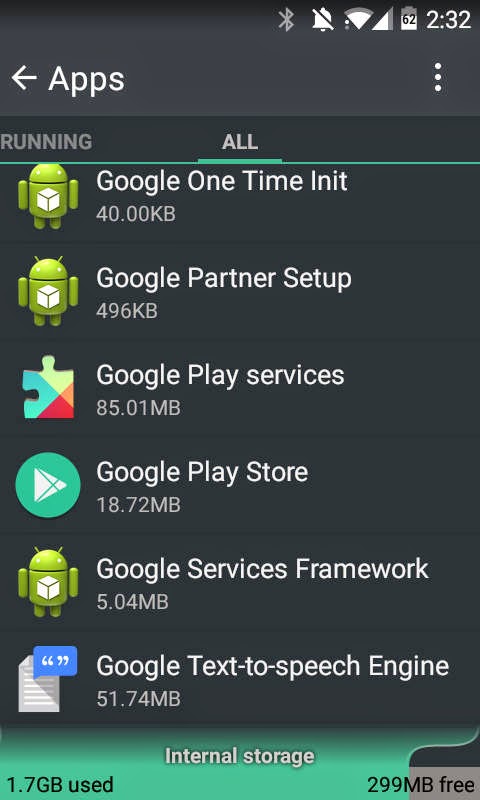
  • Go to Settings >> Apps >> swipe and go to "All" tab
  • scroll down and select "Google Play Store" >> Select "Clear Cache" and "Clear Data"
  • similarly, clear cache and data for "Google Play Services"
  • reboot (optional)
  • open Google play and try to download or update the app or game

Method 3: Remove and add back your Google account

This is a very common error fix used to solve Google play Error 927, Error 963, and Error 907.  In this method you will have to remove your Gmail account from settings >> Accounts >> Google >> press menu and select  "Remove account". After that simply adding the same account back will fix the app download/update error.


Let us know if the above steps fixed Google Play Store Error 500 in your Android smartphone or tablet. If you have any other solution or fix, let please drop a comment and help us out.


download now

Read More

How to fix error 923 in Google Play Store

How to fix error 923 in Google Play Store


The Error 923 is a Google Play Store error which prevents Android users from updating or downloading apps and games. The error message looks like this: "Viber" could not be downloaded due to an error (923). Popular apps affected by this Google Play Store bug include Facebook, Clash of Clans, Hearthstone, Whatsapp and Subway Surfer.  While I’m not sure what Android error code 923 exactly means, in order to fix it, you will use the cache clearing method, which has been used to solve other common Android market errors like RPC:S-7 and the infamous “unfortunately app has stopped error”. Users will keep getting this error until they clear the cache and data for some Google processes. Here are a couple of fix for Error 923 in Google Play Store:


Similar Error: Fix Android Error 924 on Google Play

How to Fix Error 923 in Google Play Store 

First Method : Clear Google app cache


Clearing App Cache to fix 923 error in AndroidClearing App Cache for Google Play Store


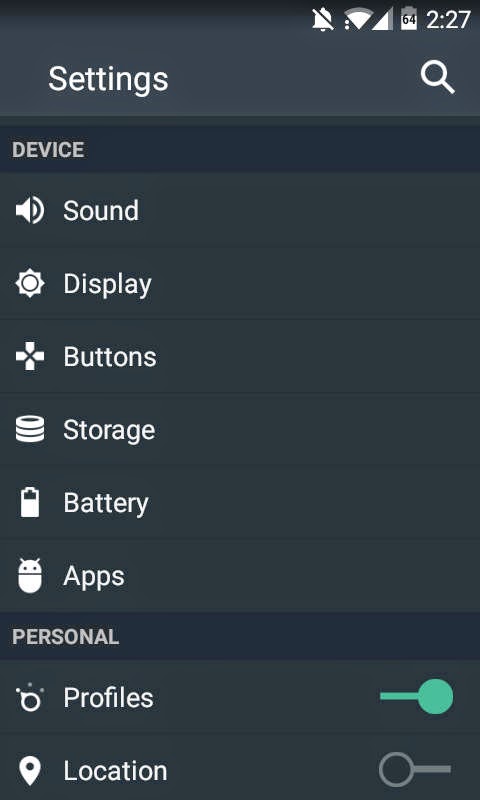
  • Go to Settings >> Apps >> Swipe left to see “All” apps list
    • Scroll down and select “Google Play Store” 
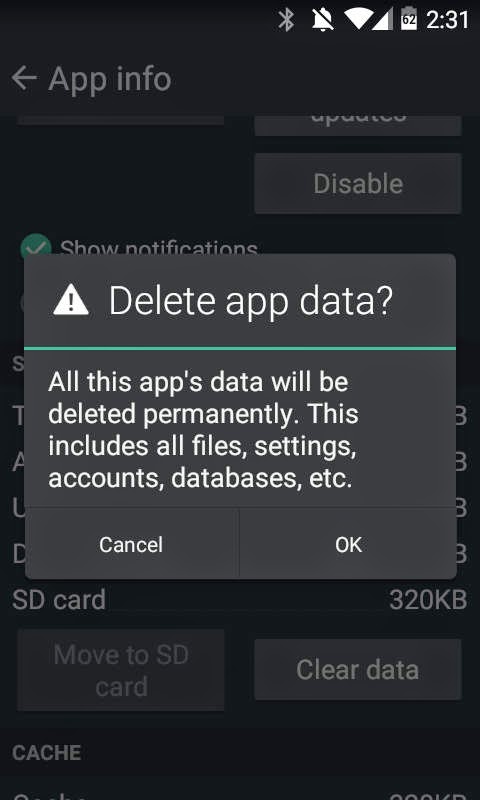
    • Select “Force stop” and then “Clear Data” >> Select “Ok”
  • Go to Settings >> Apps >> Swipe left to see “All” apps list
    • Scroll down and select “Google Play Services” >> 
    • Select “Force stop” and then “Clear cache” >> Select “Ok”
  • (optional) Again go back to “All” app list 
    • Scroll down and select “Google Play Framework” >> 
    • Select “Force stop” and then “Clear Data” >> Select “Ok”


Once above steps are completed, open Google Play Store, add you Gmail account information and start downloading apps and games.

Second Method: Clear System Cache

Android_Settings
Clearing System Cache to Fix error 923 in Android Play Store


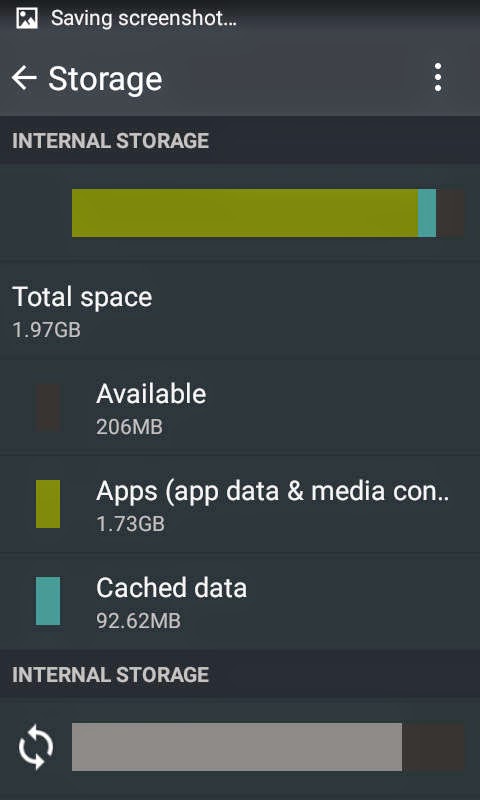
  • Go to Settings >> Storage
  • Tap on “Cached Data” under Internal Storage
  • Press “OK” to clear cache
  • Now reboot and try to install the App from the Google Play Store


I hope the above solutions helped resolve this error for your Android Smartphone or tablet. If you have any other 923 error fix, please mention them in the comments.


Note that this error is common mostly in the Jelly Bean operating system so if you update to the latest Android 4.4 Kit Kat or Android 5 Lollipop, you may stop getting this error. Some devices which have been affected by the 923 error include Moto G, Samsung Galaxy S5, Galaxy S4, Galaxy S3, Galax S2, Nexus 4, Nexus 7, HTC One X, LG L5.  Many users have complained of the 923 error while to download Whatsapp, Facebook, Blackberry Messenger etc.


download now

Read More

Monday, September 26, 2016

How to fix android process media has stopped error

How to fix android process media has stopped error


The process android.process.media has stopped error affects android devices that have recently undergone some sort of firmware upgrade. This is not a major error because it doesnt affect normal functions but it can be annoying because it constantly pops up and you have to force close it. It is more common among users of custom ROMs like Cyanogenmod. Many have also got this error after restoring their apps via Titanium Backup. The obvious fix is to factory reset your device but that is a last resort. There are several other methods you can try to fix android.process.media has stopped error. Here are some of the solutions:

How to fix error android.process.media has stopped 

The process android.process.media has stopped unexpectedly. Please try again.


Method 1: Clear date of Media Storage

The data clearing is the most common method used in resolving many types of android error.
  1. Go to Settings >> Apps >> All
  2. Scroll down and select "Media Storage"
  3. Press "Force close" and select "Clear Data".
  4. See if the error message stops

Method 2: Move apps to internal storage or try a different SDCard

This android.process.media has stopped can also be caused if you have recently installed some apps installed inside your SDCard. Move the app to internal storage by going to Settings >> Apps >> All >> Select the app and select "move to internal storage" or "move to phone".  See if the problem is resolved. Also try uninstalling and reinstalling the app.

Sometimes the problem can be caused by a faulty sdcard. Check your SDcard for error in your PC. You can use the built-in disc management utility in your PC.  If that doesnt solve the error, try a different SDCard.

Method 3:   Clear dalvik cache and fix permissions

This is for custom ROM users who have clockworkmod recovery installed in their rooted Android smartphones or tablets.
  1. Power off device and boot into recovery (press volume + power key)
  2. go to advanced >> dalvik cache
  3. make the selection and press ok
  4. go back and also select "fix permission" if you have the option

Method 3: Clear data for Google Service Framework  and Google Play
  1. Go to settings >> Apps >> Swipe left and select "All" tab
  2. Scroll down and select "Google Service Framework" and select "Clear Data"
  3. Again, from "All" >> select "Google Play Store" and select "Clear Data"
  4. Before going to next step make sure you have moved everything from the download folder to a another location or external SDcard.
  5. Again, from "All" >> scroll down and select "Download" or "Download Manager" and "Clear Data".


Let us know if the above methods resolved the error on your Android Device. If you have any other suggestions/fix please post it in the comments.


download now

Read More

Sunday, September 25, 2016

How to fix error 920 in Google Play Store

How to fix error 920 in Google Play Store


The error 920 is another common Google Play Store related error. This bug prevents you from downloading or updating your apps & games from the Android market. This issue is also common in in Cyanogenmod based devices like OnePlus One. The fix for error 920 is the same as that of error 963 and the infamous error RPC:S-5:AEC-0.  All you need to do is clear some cache and delete/re-add your Gmail account in the settings. First thing youd want to try is rebooting (restarting) your android device and then installing the app causing the error. If that didnt work,  here are the simple steps to resolve or fix error 920 in Android Google Play Store:

How to Fix App Error 920 in Google Play Store  

Update for "Gmail" could not be downloaded due to an error. (920)


Method 1: Uninstall and Re-install the app or game causing error
  • go to Settings >> Apps >> All
  • scroll and find the App giving the error 920 >> Select "Uninstall" 
Method 2: Clearing Cache and Data 
  • go to Settings >> Apps >> All
  • scroll down and select "Gogle Play Store >>  Clear Cache and Clear Data
  • open Google Play Store and try to download/update the app or game


Method 3: Removing and re-adding Google account
  • go to Settings >> Accounts >> Select "Google"
  • select your Gmail account 
  • Press menu and select "Remove acccount"
  • optionally, do a reboot
  • Again, from Settings >>  Under "Accounts" >> select "Add account" >> Select "Google"
  • Now simply add back your Gmail account deleted earlier
  • Open Google Play Store and download or update the app  

One of the above three methods have worked perfectly for most users. The third method is popular but first two are shorter so you could give them a try. Did this fix solve error 920 for your Android? Let us know along with your device model and operating system. HTC One,  Galaxy S4, Nexus 5 users have widely reported this error. Whatsapp, Facebook, Gmail app installation are also frequently affected by this error. 

If you have an alternative or a more permanent solution, drop it in the comments. 


Related Error:
Unknown error code during application install: "920"


download now

Read More

Saturday, September 24, 2016

How to Fix Error Code 504 in Google Play Store

How to Fix Error Code 504 in Google Play Store


The Error 504 is a Google Play Store gateway error that occurs due to slow internet connection on your Wi-Fi or mobile data. This is the error message I received while trying to install Facebook via Google Play store: Cant install app. "Facebook" cant be installed. Try again, and if the problem continues, get help troubleshooting. (Error code:- 504). One of the signs of a slow connection is slow loading of normal webpages. Try opening google.com on your Android browser, if it takes longer than normal to load the page, then your connection is slow and when you try to download or update large Android apps or games in such a connection, you will get the unknown error code 504 in Google Play. Users have reported this error while trying to update/download apps like Facebook, Chrome, Titanium Backup, Viber and so in google Play.

This error generally occurs while downloading or updating apps while the internet is slow. This issues has affected many android devices running different OSs like JellyBean 4.2, KitKat 4.4 and Lollipop 5.0. Most of the time, Google Play Store error 504 goes away once your network is back to normal. If youre getting this error despite a normal internet speed try the following method to fix error code 504 in Google Play Store:

How to Fix Google Play Store Error 504 during app install & update

App cant be installed Error Code -504 in Google Play Store
Google Play Store Error Code: -504 while installing Facebook 

Method 1:Turn off and turn on Wi-Fi

This is basically to see whether your wi-fi is working as normal. 
  • First turn off your router, wait for 30 secs and then turn it back on
  • Now, turn off your smartphone or tablets wi-fi and then turn it back on
  • Connect to your Wi-Fi network
  • Open Google Play and try to update/install the app

Method 2: Turn off and turn on mobile data

Sometimes the problem can be with your home or office internet connection. You can simply turn on mobile data and try to download and install your app from Google Play Store. However, some mobile service providers charge high fees on mobile so only use mobile data if you can afford it. If your device is still unable to connect via mobile data, turn it off and on and check. 
  • You can turn off mobile data or the entire network via Aeroplane mode in the quick settings
  • If you dont know how to use Aeroplane mode, go to Settings >>Mobile Networks >> Disable Data
  • Now turn your mobile data back on and try to run the installation

Method 3: Clearing Cache and Data of Google Play Store


This is the most used method for fixing many Google Play Store error codes and error messages.
  • Go to Settings >> Apps >> Swipe and select "All"
  • scroll down and select "Google Play Store" >> Clear cache and Clear Data
  • again, from "All" >> scroll down and select "Google Service Framework" >> Clear Cache and Clear Data
  • Now, open Google Play Store and update or download your app or game 
Related: How to fix com.android.vending has stopped Google Play error

Please note that the above methods might not work for everyone but they have worked for most. Most of the times, this error just automatically resolves after your network speed is normalized. If you have other possible  solutions for the 504 Error in Google Play Store please let us know in the comments. 

download now

Read More

How to Fix App could not be downloaded due to error 400

How to Fix App could not be downloaded due to error 400


The app could not be downloaded due to an error 400 is a Google Play Store Error affecting Android smartphones. Another format of this error is something like this- Unknown error code during application install 400. This issue is caused when you try to update or download app on a slow internet connection (Mobile Data or Wi-Fi). So make sure you have a working internet connection.  In my case, the error was resolved automatically on second try. If you are still getting the error while updating or installing apps in Google Play, try these quick methods to fix Google Play Error 400:

How to Fix Installation-Update Error 400 in Google Play


Method 1: Cancel download and re-install

This is a simple method.  Cancel the installation mid-way and then retry installation or update in Google Play.


Method 2: Disconnect and reconnect to a different network

The error is very frequent in slow networks so try to connect to a different Wi-Fi or use Mobile Data LTE/3G. After connecting to the new network try to install/update your app or game.


Method 3: Clear Data and Cache of download manager

(Note: If you have any important files in the Downloads folder, copy it to another location)
  • Go to Settings >> Apps >> All >> Select "Download manager 
  • Clear Cache and Data 


Method 4: Clear Proxy

  • Go to Settings >> Wireless & networks >> More >> Mobile Networks >> Access Point Names (APN)
  • Your mobile networks wap (networknamewap) must be selected by default >> Click it 
  • Select "Proxy" >> Clear/delete the address number 
  • Select "Port" >> Clear/delete the port number
  • Now open Google Play and try to update or download the app that was giving the error

Method 5: Uninstalling Google Play Update

  • Go to Settings >> Apps>>All >> Scroll down and Select "Google Play Store"
  • Select "Uninstall Updates"
  • Open Google Play Store and try to update or download the app(or game) 
Some of the methods can help resolve not just error 400 but also Play store error 924 . Did any of these methods work for you? Please let us know in the comments if you have other fixes or possible solution for the Google Play error code 400. 


download now

Read More

Friday, September 23, 2016

How to Fix 0x803f8001 error in Windows 10 Store

How to Fix 0x803f8001 error in Windows 10 Store


Windows 10 upgrade have brought new life to many devices- even ones with really old hardware dating almost 8-9 years. The new Win 10 combines the best features of Windows 8.1 with the user friendly interface of Windows 7. However, not al would agree with this and many have stuck to Windows 7 and some have even rolled back to Win 7 after experience some bugs in Windows 10. One of the common bugs cause apps like MSN Food, MSN health, MSN news, Get Skype, Get office, Phone companion etc to crash and giving the 0x803f8001 error while trying to update or download in the Windows Store. Basically, users cannot install any app or game from the store. Read below to find out how to Fix 0x803f8001 error in Windows 10 Store

How to Fix 0x803f8001 error in Windows 10 Store

Method involved: Uninstall and Re-install apps causing error: For example let’s say the “Get Skype” app is giving you the error 803f8001. To fix this
  1. Click start >> Type “Get Skype” in the search bar
  2. Right Click “Get Skype” from the search results
  3. Select “Uninstall” and wait for a few minutes to ensure its uninstalled
  4. Now open Windows Store (type “Store” in search bar)
  5. Search “Skype” and re-install
  6. Repeat the same steps for other apps affected by the error


Windows may soon come up with a patch to fix this error permanently. In the meanwhile, the above steps will let you install the Windows 10 apps in your device. Did this fix the 0x803f8001 error for your PC, phone or tablet? Do you have any other solution? Let us know in the comments.

download now

Read More

Thursday, September 22, 2016

How to fix Dns Probe Finished Nxdomain error in Chrome

How to fix Dns Probe Finished Nxdomain error in Chrome


The fix/solution for the DNS_PROBE_FINISHED_NXDOMAIN error is same as the one used to cure the DNS_PROBE_FINISHED_BAD_CONFIG and DNS_SERVER_NOT_RESPONDING errors. These errors can affect any Windows operating system i.e. Windows 7, Windows 8.1 and Windows 10. The most common methods recommended by various bloggers is to flush the DNS. This is very easy. All you have to do is enter a single line command in the command prompt. The second fix is to change the default DNS addresses. This second method has been the most effective for most users. Hence, I am posting below the most effective way to fix DNS_PROBE_FINISHED_NXDOMAIN error in Chrome:

How to fix DBS Probe Finished Nxdomain error in Chrome [Windows]

Method 1: Manually change the DNS address

  1. Press Windows key + R and type ncpa.cpl 
  2. Press Enter
  3. Right click on your network (Local Area Network or Wireless Network Connection) and select Properties.
  4. Under Networking tab, you will see This connection uses the following items: list
    • Click on Internet Protocol Version 4 (TCP/IPv4)
    • Click on Properties. A new box will pop up
    • Under General tab, select “Use the following DNS server addresses:”
      • Set Preferred DNS Server to 208.67.222.222 (or 8.8.8.8)
      • Set Alternate DNS Server to 208.67.220.220 (or 8.8.4.4)
  5. Open Chrome, check to see if the DNS Probe Finished Nxdomain error is fixed or not. If the error is unresolved , change the Alternate DNS Sever to either 8.8.8.8 or 8.8.4.4.
Network adapter properties in Windows 10
Network Properties


If the above solution didnt work try the method 1 and  method 2 on this post: How to fix DNS_PROBE_FINISHED_NO_INTERNET

Do you have any other fix for this error? Let us know in the comment section. 


download now

Read More

How to fix DNS Server Not Responding Error in Chrome browser

How to fix DNS Server Not Responding Error in Chrome browser


The DNS Server Not Responding error is a Windows error that stops your from viewing webpages of certain websites on Chrome browser. You will have to refresh the webpage several times to make it load. This error can occur despite a good internet connection. So the first step in diagnosing this issue is to check your Wi-Fi or mobile data connection for internet access. The DNS Not responding Error occurs when your Windows Phone or Windows PC cannot connection to the Domain Name Server, which translates a website’s address to let you connect to the website. This can be caused by a server problem, in which case you can just wait for it to be resolved, or it can happened due to corrupt network settings. Here are some quick and easy methods to fix DNS Server Not Responding Error in Windows Chrome browser:

How to fix DNS Server Not Responding Error in Windows Phone or PC

Also used to fix DNS_PROBE_FINISHED_NO_INTERNET

The internet is filled with lots of solution and fixes for the DNS Server error, but here I am only posting the ones that have worked for most users.

Method 1: Flushing DNS


  1. Press Windows key + R and type cmd and press Enter
  2. Type ipconfig /flushdns
  3. You will see a message that says Successfully Flushed the DNS Resolver Cache
  4. Check to see if the problem resolved. If it still exists, try the method below.


Method 2: Edit DNS Server address in Network Settings

To manually setup the DNS address, follow these steps:
  1. Press Windows key + R and type ncpa.cpl and press Enter
  2. Right click on your network connection (Local Area Network or Wireless Network Connection) and select Properties.
  3. In the Networking tab, you will see “This connection uses the following items:” list
    • Click on “Internet Protocol Version 4 (TCP/IPv4)”
    • Click on “Properties. A new box will pop up
    • In General tab, select “Use the following DNS server addresses:”
      • Set Preferred DNS Server to 208.67.222.222
      • Set Alternate DNS Server to 208.67.220.220 (or 8.8.8.8 or 8.8.4.4)
  4. Check if the DNS Not responding error is fixed. If it still persists, set the Alternate DNS Sever to either 8.8.8.8 or 8.8.4.4.
Network Properties: General Tab

Editing DNS Server Addresses in TCP/IPv4 

The above two methods have been the most effective for Windows users affected by the DNS Server Not Responding Error. Did you solve this error? Do you have other alternative methods or solutions for this error? Let us know in the comments.


download now

Read More

Sunday, September 18, 2016

How to fix KB3081424 update failed error in Windows 10

How to fix KB3081424 update failed error in Windows 10


The latest issue affecting Windows 10 is an update bug that prevents the KB3081424 file from installing, giving you an error that says “We couldn’t complete the updates, undoing the changes”. Failed updates and installations are common issues experienced by many Windows users. However, this particular update error causes the system to reboot again and again, because when each time the update fails, it requires a mandatory reboot. Your system might also be affected by this error so bookmark this page. Here is how to fix failed to install KB3081424 update in Windows 10:

How to fix cannot install KB3081424 update in Windows 10

You should get enough time to try the below steps before the windows 10 tried to install KB3081424:
  1. Click Start >> Type “regedit” in the search bar >> Press Enter
  2. Open the registry editor and navigate to the following key:
    • HKEY_LOCAL_MACHINESOFTWAREMicrosoftWindows NTCurrentVersionProfileList
  3. To be safe you can right click “ProfileList” and click “Export”. This will backup the registry key.
  4. Under ProfileList, you will see Profile keys in the format S-1-5-18, S-1-5-19, S-1-5-20 etc. Select each one and delete their ProfileImagePath by right clicking on it and selecting Delete.
  5. Exit regedit and restart your system.
  6. Now when the system update runs the KB3081424 update patch will install without error.


This KB3081424 update issue has even made it to the headline of Forbes, but. A lot of new OSs are prone to errors and bugs and that’s why it continuously receives errors. However, Windows 10’s forced updates can become a real nuisance when its system update files are corrupted. People with no technical skill will find it hard to solve the problem themselves- especially when the solution involves tweaking the registry. If the above method still didn’t solve the Windows 10 system update error, also try the simple method here: How to fix failed to install KB3081704 update in Windows 10.


download now

Read More

How to Fix Error 492 on Google Play Store

How to Fix Error 492 on Google Play Store


We have a simple fix for app could not be downloaded due to error 492 in Google Play Store. This Android Error prevents users from updating, downloading or installing apps and games from the Play Store.  Its weird that this error only affects selected apps whereas other apps install just fine. So what are the solutions and possible methods to resolve this error? The solution involve the similar steps used to fix Android error 498, which is to clear app cache and data of Play Store and other similar Google apps. Here are the easy steps to fix error 492 in Google Play Store and also on MIUI based Mi-Market:

How to fix Google Play Error 492 on Android 

Example errors:

Update for "YouTube" could not be downloaded due to an error (492)

Update for "Clash of Clans" could not be downloaded due to an error (492)

"Hearthstone: Heroes of  Warcraft" could not be downloaded due to an error. (492)

Other Apps/games affected by Error 492 include Facebook, Viber, Whatsapp, Hearthstone:Heroes of Warcraft, Asphalt 8, Dead Trigger and so on. 

screenshot of google play error code 492


Solution 1: Re-installing the App or Game

If you are getting this error while trying to update, first uninstall the app and then re-install it from Google Play Store. Also, make sure to check that your internet connection is not slower than usual.


Solution 2: Clearing Cache and Data 
This is the most common approach to fix Android error messages and error codes during app installation in Google Play Store.
  1. Go to Settings >> Apps >> All
  2. Scroll down and select "Google Play Store"
    • Select "Clear Cache" and "Clear Data"
  3. Scroll down and select "Google Services Framework"
    • Select "Clear Cache" and "Clear Data"
  4. Now open Google Play Store and update or install your app (or game)
Additionally, you may have to uninstall updates for "Google Play Store"  on Step 2 above. That will restore the factory version of the Play Store. Dont worry, the Play Store app will automatically update later. 

Solution 3: For Custom ROM users
Custom ROM users use a "recovery" menu to flash new ROMs (operating systems) or other additional software tweaks via zip files. People who use customized Android OSs like Cyanogenmod are tech savvy and they will know what the below steps are, but newbie flashers may need to do som research. 
  • Turn off your phone and boot into recovery
    • Search online for the proper button combination to enter recovery mode
  • Use volume keys for highlighting menu options
  • Select "wipe cache partition" 
  • Optionally, go to advanced menu and select "wipe dalvik cache"
  • Reboot system
  • Open Google Play Store and Download your app 

Solution 4: Formatting SD Card

If you are running custom ROM on your rooted Android device, then you can probably install APps to SD. When you have a corrupt SD Card and try you install apps (games) in it, you can get error 492. Format your SD Card or run on a disk check to find and solve system file errors. To check for errors, connect your device to your PC or simply take out the SD Card and insert it into your PC. Then right click on the removable storage and click Properties. Go to Tools >> Click "Check". You might have to replace your SD Card if it has lots of bad sectors.

If you are still getting the error code 492, you maybe able to fix it my using the methods on these posts:

Related Android Error Codes and Fixes
How to Fix  Google Play Error 907 
How to Fix Error 963 in Google Play
How to Fix Error 489 in Google Play
How to Fix Error 906 in Google Play 


download now

Read More

How to fix error 906 in Google Play Store

How to fix error 906 in Google Play Store


In this post we will read the methods to fix app could not be downloaded due to an error (906) in Google Play Store for Android. The fix for download failed error 906 fix is similar to that of error 963. The common method used to solve fix these error codes is to uninstall Google Play Store updates and clear data of Google Play Services. Some have also resolved this issue by unmounting SD card before downloading an app or game. The step by step instructions on how to fix error 906 in Google Play Store is mentioned below:

How to fix error 906 in Google Play Store [Best Solution]


Method 1: Clearing Cache and Data 
  1. Go to Settings >> Apps >> All >> Scroll down the list and select "Google Play Store"
    • Select "Clear Cache" and "Clear Data"
  2. Similarly, from All >>Screoll down and select "Google Play Services"
    • Select "Clear Cache" and "Clear Data"
  3. Now open Google Play Store and try to update or install the app/game that was initially giving you the error 

Method 2: Unmounting SD Card
  1. Go to Settings >> Storage >> Scroll down and select "Unmount SD Card"
  2. Open Google Play Store and then download or update the app or game
  3. After successful update or installation, go back to Storage  >> Scroll down and "re-mount the SD card"

Method 3: For error 906 during update of apps-games installed in SD Card
  1. Go to Settings >> Apps >> All >> scroll down and select the app (game) thats giving the error 906
  2. Select "Move to internal storage"
  3. Open Google Play Store and run update the app (game)
  4. After successful update, move the app back to SD Card.

Method 4: Uninstalling Google Play Store updates (high success rate)
  1. Go to Settings >> Apps >> Scroll down and select "Google Play Store"
  2. Select "Uninstall Updates"
  3. Optionally, go to settings >> apps >> scroll down and select "Google service framework"
    • Clear Data and Cache
  4. Open Google Play Store and update or download the app (game) that was giving you error 906


Hit the social media buttons if the above solutions fixed Error 906 for your Android device. Let us know if you have any other steps/methods to resolve this Google Play Store error.


download now

Read More

How to Fix Error 905 in Google Play Store Android Lollipop KitKat Marshmallow

How to Fix Error 905 in Google Play Store Android Lollipop KitKat Marshmallow


Many Android 5.0 Lollipop users are reporting error 905 in Google Play Store while installing or updating apps/games. Heres the error message: "app" could not be downloaded due to an error (905). I am not exactly sure what this error code means but it may be caused by poor memory management or memory leak on a buggy OS. I got the Google Play error 905 while downloading an app on my phone that had recently received Android 6.0 update. The download bar would show progress but it would stop downloading right at the end and then this error message would pop up. Sometimes the error would appear right after tapping the "install" button in Google Play Store.  

Android users are getting this error mostly while downloading large apps or games like Microsoft Power Point, Microsoft Word, Excel, Asphalt 8, Monument valley, Hearthstone Heroes of Warcraft, Mortal Kombat X etc.  After some research, I’ve found some quick methods to fix error 905 in Google Play Store. These fixes should also work for  devices running Android 4.3 JellyBean Android 4.4 KitKat, Android 5 Lollipop or  Android 6 Marshmallow.


How to Fix error 905 in Google Play Store Android


Method 1: Keeping screen on during app update or download in Google Play Store

  1. Go to Settings >> Display >> Screen timeout (Sleep) >> Keep screen turned on (or set timer to the highest possible value) 
  2. Open Google Play Store >> Download your app that was causing error 905
  3. Do not go back or close Google Play Store until the download and installation is completed.

Method 2: Close background apps

  1. Sign out of apps that run in the background
  2. Go to Settings >> Apps >> Running >> Check apps that are taking too much MB or memory >> Stop or sign out of these apps
  3. Open Google Play Store and try to install/update app 


 If the above methods didn’t work, try the one below

Method 3: Uninstalling updates for Google Play Store
  1. Go to Settings >> Apps >> All Scroll down till you find “Google Play Store” 
  2. Select “Uninstall updates” Open Google Play Store >> Install or update the app 
  3.  Note: Your Google play Store will automatically update later but you will no longer get the 905 error.

Common devices experiencing this error include Nexus 7, Nexus 5, Galaxy S4, S5, S6, HTC One, Xperia Z2 etc. If you’ve managed to solve  Google Play error code 905 through other alternative methods, let us know about it in the comments. If any of the above method worked for you, hit the like buttons.


download now

Read More

How to fix process com google android youtube has stopped error

How to fix process com google android youtube has stopped error


Many users running custom versions of Android OS like Cyanogenmod, Paranoid Android etc  in their smartphones or tablets have reported an error that prevents YouTube app from opening. Here is the error message: process.com.google.android.youtube has stopped unexpectedly. Please try again. After this error message, the app force closes, and when you try to open it the same thing happens. Here are some methods to fix the google.android.youtube has stopped error:

How to fix com.google.android.youtube has stopped error


First make sure your Youtube app is updated in the Google Play Store. If you still get the error message after updating, try the methods below:
Similar error

Related error: process com.google.android.apps.uploader has stopped

Method 1: Uninstall and reinstall YouTube app

  1. Uninstall YouTube app
  2. Re-install it from Google Play
  3. Open YouTube and see if the error is still there

Method 2: Clear cache and data of YouTube app

  1. Go to Settings >> Apps >> All >> scroll down and select “YouTube”
  2. Select “Clear Data” and “Clear Cache”
  3. Open YouTube app and see if the error is resolved

Method 3 (for rooted users with clockworkmod recovery:

  1. Reboot into recovery( power off, press volume down + power button, let go after logo appears)
  2. Go to advanced options >> select “clear dalvik cache”
  3. Reboot system
  4. Open Youtube app

Method 4: Factory reset


If all fails, you will need to factory reset your device, which will most likely fix this issue. First back up all your data to an external SDCard or your hard drive. You can also backup your apps and games using titanium backup. If you are factory resetting your phone, backup your SMS and Contacts by using the free Super Backup: SMS and contacts app from Google Play store.
  1. Go to Settings >>Backup and Reset >> select “factoy data reset”
  2. Confirm and reboot your android tablet or phone.
Before doing the factory reset, you can also try second method  of this post: How to fix error 927 in Google Play 

Did the above methods fix the process.com.google.android.youtube has stopped error for your Android device? Do you know any other fix for this error? Let us know in the comments.


download now

Read More

Friday, September 16, 2016

How to fix Android Error 491 in Google Play Store

How to fix Android Error 491 in Google Play Store


The Google Play Error 491 and 492 are common errors that dont let users install or update apps from the Android app Store. This is a minor issue and can be easily solved by removing and adding back your main Google(Gmail) account. Basically the error fix involves the same method as for solving other Play Store related errors like RPC:S-5:AEC-0, Error 907 and Error 963. Another possible fix for Error 491 in Google Play is to wipe cache partition and dalvik cache via recovery, but the first method mentioned below is much simpler.

How to fix Google Play Error 491 and Error 492

All you need to do is remove your Gmail account from settings and then add it back, The whole thing takes barely 5 minutes. If you already know how to do it, no need to read further, If not, here is the step by step instruction: 
Steps to fix error 491 in Google Play Store
  1. Go to Settings >> Scroll down to "Accounts"
  2. From your Accounts select Google>>Remove your main Gmail Account (Press menu key and select remove account)
  3. Now reboot your Android phone or tablet
  4. After reboot, add back your Gmail account
  5. Run Google Play Store and install the app

I hope the above solutions worked for you.  If it fixed the issue, please like this post and drop a comment. If you have any other solution for the Android Error 491 also let us know about it in the comments. 


download now

Read More

Thursday, September 15, 2016

Flash Smartfren Andromax – Fix bootloop C3 Error Off total

Flash Smartfren Andromax – Fix bootloop C3 Error Off total


If there are problems with your C3 Andromax Smartfren , suppose happened bootloop or shuts it down, you have to do a re-flash or install recovery img on the Andromax Smartfren. Flash process or flashing the same as the reinstall process on a computer or PC, so that you will get a flashing initial performance as well just come out of the factory . So flashing Smartfen Andromax C3 is a smart way if Smartfen Andromax C3 is not responding and can not be power on or other terms are bootloop.

also read ? How to Root Smartfren Andromax

Flash Smartfren Andromax

Tutorial:
  • Download Sdimage to Andromax C3 AD6B1H here
  • Once you have finished downloading files over, now extract the file, then move sdimage folder to the SD card.
  • Put the SDimage into the device Andromax C3
  • Then turn on your C3 Andromax, After Andromax C3 turns on and the position ready for use, you will find a message read more and iconic blue box. You can click or tap on the text.
  • Flash process will start, and lasted for 15 to 20 minutes. If you see an update message success, then the flash process is complete.
  • Done!

download now

Read More

How to fix Error 80004005 while updating installing apps on Windows 10

How to fix Error 80004005 while updating installing apps on Windows 10


The Error 0x80004005 is a frequently occurring error that prevents you  from downloading, installing or uptaing apps on Windows apps store. This error is also common in the app store or game store in Xbox 360 and Xbox one. This error is usually caused when you dont have access to the internet. The reasons you may not have your Wi-Fi connected to the internet could be ISP issue, router error or simply some minor operating system bugs. Below are some of the methods you can try to fix the Error 80004005 while updating or installing apps in Windows Store or Xbox store.

How to Fix error 80004005 in Windows Store or Xbox Store


Try a different Wi-Fi/internet connection

The most common cause of the 0x80004005  is a bad internet connection. The first thing you should do is open your browser and run google.com. Is the page opening? If youre getting some kind of server error or no internet connection error, then the problem is with your home internet connection. Sometimes, it can be resolved by simply turning off and turning on your router. Many times it could be a problem with your ISP who is unable to provide you internet connection. (Forgot to pay the bill?). Call them and try to resolve the issue. To check the connection status, you can also look at the Wi-Fi icon on your phone, tablet or PC . If theres no connection, the Wi-Fi icon will have a small cross over it or you can hover over  the icon to see whether "internet access" is available. 

If you are trying to update or install apps on your Windows smartphone or tablet, switch to mobile data connection (3G/4G) and now run the installation from the Windows App Store. Note: It is recommended you use mobile data connection only if youre subscribed to an unlimited data package or a reasonably priced plan because large apps or games can use up your mobile data fast.

Access the game store from your browser

If you are getting the error 0x80004005 while trying to sign in to your Xbox account in your Xbox console, you can open xbox.com  on your desktop browser and sign in. Click "Games"  >> Choose your device >> browse games  >> click "Download to Xbox 360". This will start the download.

Shutdown and Restart your device

Sometimes the connection problem may be a minor bug affecting your Windows PC, mobile or Xbox console. Turn the PC or Xbox off and then turn it back on. Connect to the internet, open the Windows Store and try to download/update the app or game,


download now

Read More