Showing posts with label google. Show all posts

Thursday, September 29, 2016

Cara Mencari Gambar Serupa Di Google

Cara Mencari Gambar Serupa Di Google


Infosaged - Cara Mencari Gambar Serupa Di Google. Infosaged kali ini akan menjelaskan bagaimana cara mencari gambar serupa atau mirip di mesin pencari terbaik dunia yaitu google.com dimana dengan mencari gambar serupa di google ini kita bisa tahu sumber awal sebuah foto atau gambar yang terpampang di internet. Nah untuk mencari gambar serupa di internet ini kita dapat menggunakan salah satu layanan google untuk mencari gambar serupa yaitu http://google.com/imghp/ sebagai contoh anda ingin mencari gambar bertema hantu kuntilanak, maka anda dapat mengupload gambar kuntilanak dan kemudian google akan memberikan hasil yang sangat-sangat akurat mengenai gambar sosok kuntilanak tersebut.

Cara Mencari Gambar Serupa Atau Mirip Di Google

Fitur google yang satu ini juga sangat membantu khususnya bagi anda yang tidak menyukai aksi pencurian gambar di internet, jadi dengan memakai cara ini anda dengan mudahnya dapat menemukan blog atau website mana saja yang telah mencuri gambar di blog anda, oke langsung saja simak dengan baik langkah-langkahnya dibawah ini.

  • Buka browser lalu ketik dan kunjungi www.google.com/imghp kemudian klik icon berlogo kamera
Cara Mencari Gambar Serupa Di Google
  •  Pilih unggah gambar lalu klik tombol telusuri
Cara Mencari Gambar Serupa Di Google
  •  Upload sebuah gambar lalu klik open
Cara Mencari Gambar Serupa Di Google
  •  Jika hasilnya sudah muncul, scroll kebawah lalu klik
     gambar mirip secara visual
Cara Mencari Gambar Serupa Di Google
  •  Hasilnya
Cara Mencari Gambar Serupa Di Google

Dengan cara begini kita dapat menemukan gambar yang benar-benar mirip seperti apa yang kita cari, demikianlah informasi dari saya, semoga bermanfaat.

download now

Read More

Wednesday, September 28, 2016

How to Fix Error 505 in Google Play Store

How to Fix Error 505 in Google Play Store


The Error 505 is a Google Play Store error in Android 5.0 Lollipop and KitKat 4.4. Some apps affected by Error code 505 include Google Play Games, Asphalt 8, Hearthstone, The Walking Dead, Clash of Clans and so on. The fix involves running a simple ADB command in Android SDK, we will come to that later. Many got this error due to the Adobe Air app. So you can try uninstalling the app. This error has been fixed on the latest versions of Android Lollipop so you can also update your version of Lollipop to 5.1 or later to fix it.

This is actually a permission error so clearing cache method may not work. But you can still give it a try. First, clear the cache and data for Google Play Store and Google Service Framework. These methods are explained in detail here: RPC-S:7/RPC-S:5 and Error 963. If those solutions didnt help, try the steps below to fix Google Play Error 505 while installing or updating apps:

How to fix Error 505 in Google Play Store during app download


Method 1: Uninstall conflicting app(s)

If you have multiple apps installed to perform similar function, then the -505 error code maybe caused because those apps are trying to access the same system settings. For example- you may have multiple banking apps installed and both will try to use similar payment settings and protocols. And when these apps are conflicted error 505 is caused. To resolve this issue, simply uninstall the first app and use the other one and vice versa.

Method 2: Uninstall/Re-install

First completely uninstall all the apps that are getting this error in Google Play.  For example if your Blizzard apps are facing error 505, uninstall all of them and reinstall. Also, you may have installed some Android apps from the Amazon store- try uninstalling them and re-installing them via Google Play Store.

Error Formats:  
  • Unknown error code during application install "-505"
  • "Hearthstone: Heroes of Warcraft" cant be installed. Try again, and if the problem continues, get help troubleshooting (Error code: -505)
screenshot- (Error code: -505) while installing Google+ in Google Play

Method 3: ADB Uninstall


Before you begin the steps you have to install the Android SDK on your PC, connect your Android device and perform an ADB uninstall for the app package thats causing the error.

The ADB tool is inside the platform-tools folder inside Android SDK folder. You will have to open command prompt. For Windows users: Start>> in the search box type cmd >> right click and select "Run as Administrator"

From inside the command prompt,  navigate to Android SDK folder. Now you can run the ADB. uninstall command.

After youve installed the Android SDK and appropriate USB drivers follow these steps:
  • Perform an ADB uninstall for the app package thats causing the error.  App packages are in this format: com.xx.xx. You can check the app package name by going to Android >> data folder inside the internal memory of your Android device.  
    • For example to remove chrome package from your device, the command is: adb uninstall com.android.chrome.
running adb uninstall command in Android SDK
  • After successful uninstall you will see a message that says, "success"
  • Now reinstall or update the app (or game) from the Play Store


Hopefully the above step gave you some idea about how to fix this issue. If nothing worked you may have to factory reset your device. If you have a better solution for the unknown error 505 please let us know about it in the comments.

download now

Read More

Tuesday, September 27, 2016

How to fix error 501 on Google Play Store during download or installation

How to fix error 501 on Google Play Store during download or installation


Due to error 501 in Google Play Store Android users can’t install, download or update many apps and games on their Android phones or tablets. This problem is caused most of the time if you have multiple apps installations going on in the Play Store. In such case, cancel all the app installations and download them one by one. If you are a custom ROM user, you may get the 501 error code while updating Google Play Services. This is caused because you flashed an incompatible Gapps package or a buggy OS. In such a case, reflashing the OS + Gapps package could be the solution. In my case, the Google Play Store error code –501 popped up while installing an app update. Here are all the possible methods to fix Android error 501 in Google Play:

Android Fix: Google Play Error Code: -501

Google Play Store Error 501 while updating a Google app


Method 1: Reinstall

Simply cancel the installation process and try installing the app or game. If that didn’t fix it, uninstall the app/game completely and download it again from Google Play Store.

Method 2: Uninstall updates for Google play Services

This method will probably solve error 501 message while updating Google Play apps like Google Play Services, Google +, Google Play Games, YouTube, Gmail and so on.

  • Go to Settings >> Apps >> All
  • Scroll and select “Google Play Services”
    • Tap “Uninstall updates” and “clear data”
  • Also,  select "Google Play Store" and tap "Uninstall updates"
  • Again, go to Apps >> All >> select “Google Service framework”
    • Tap “Clear Data”
  • Open Google Play and download or update an app


Method 3: Resetting App preferences

Resetting app preferences will restore default settings for your apps. This won’t delete any data from your Android device.

  • Go to settings >> Apps
  • Press menu or the three dots on the top right
  • Select “Reset app preferences” >> Tap “OK”


Method 4: For custom ROM users (Cyanogenmod, Paranoid Android, SlimROM etc)

First try reflashing your OS and then a compatible GAPPs package. Go to recovery and wipe cache partition. See if that solved the 501 error in Google Play. If that didn’t work, you will need to entirely wipe the device (factory reset) and then run a fresh installation. For the fresh reinstallation try a different ROM and a new Gapps package. Reboot into recovery and proceed to flash the new zip files. That will almost certainly fix the 501 error message while updating Google Play Services.


Thanks for reading. Hope one of the above methods fixed “Can’t download app due to error code -501” in Google Play Store issue. If you have alternative solutions please suggest them in the comments.

download now

Read More

How to Fix Error 500 in Google Play Store

How to Fix Error 500 in Google Play Store


Google Play Error 500 is an Android app download error that many Clash of Clans users are experiencing on their Android devices running older OS like 4.2 or 4.3 JellyBean. Relatively newer OSs like Android 4.4 KitKat and 5.0 Lollipop is also affected by this bug but not as widely as the older versions. Due to error 500 in Google Play Store, users cant download or update any Android apps. Sometimes this error code pops up during installation and even after the app has been completely downloaded. This is the exact format of the error message- "Clash of Clans" could not be downloaded due to an error (500).

Other apps affected by this Play Store bug includes YouTube, Facebook, WhatsApp, Viber and other apps. Normally this issue is caused by a slow internet connection so you can try waiting for your Wi-Fi to get back to its normal speed or you can try connecting to a different network. If the app youre , try downloading the app on mobile data.  Turn Wi-Fi off and turn it back on and try the installation. If that didnt fix  Error 500 in Google Play Store, then try the steps below:

How to fix error 500 in Google Play Store

Clash of clans game poster

Note: This fix works for any app or game causing error code 500.

Method 1: (For update error)
  • Sync Game data to Google Play Store (Settings >> Accounts >> choose ur gmail)
  • Totally uninstall Clash of Clans or any app thats causing error
  • Then reinstall it from Google Play Store


Method 2: Clearing Cache & Data
  • Go to Settings >> Apps >> swipe and go to "All" tab
  • scroll down and select "Google Play Store" >> Select "Clear Cache" and "Clear Data"
  • similarly, clear cache and data for "Google Play Services"
  • reboot (optional)
  • open Google play and try to download or update the app or game

Method 3: Remove and add back your Google account

This is a very common error fix used to solve Google play Error 927, Error 963, and Error 907.  In this method you will have to remove your Gmail account from settings >> Accounts >> Google >> press menu and select  "Remove account". After that simply adding the same account back will fix the app download/update error.


Let us know if the above steps fixed Google Play Store Error 500 in your Android smartphone or tablet. If you have any other solution or fix, let please drop a comment and help us out.


download now

Read More

How to fix error 923 in Google Play Store

How to fix error 923 in Google Play Store


The Error 923 is a Google Play Store error which prevents Android users from updating or downloading apps and games. The error message looks like this: "Viber" could not be downloaded due to an error (923). Popular apps affected by this Google Play Store bug include Facebook, Clash of Clans, Hearthstone, Whatsapp and Subway Surfer.  While I’m not sure what Android error code 923 exactly means, in order to fix it, you will use the cache clearing method, which has been used to solve other common Android market errors like RPC:S-7 and the infamous “unfortunately app has stopped error”. Users will keep getting this error until they clear the cache and data for some Google processes. Here are a couple of fix for Error 923 in Google Play Store:


Similar Error: Fix Android Error 924 on Google Play

How to Fix Error 923 in Google Play Store 

First Method : Clear Google app cache


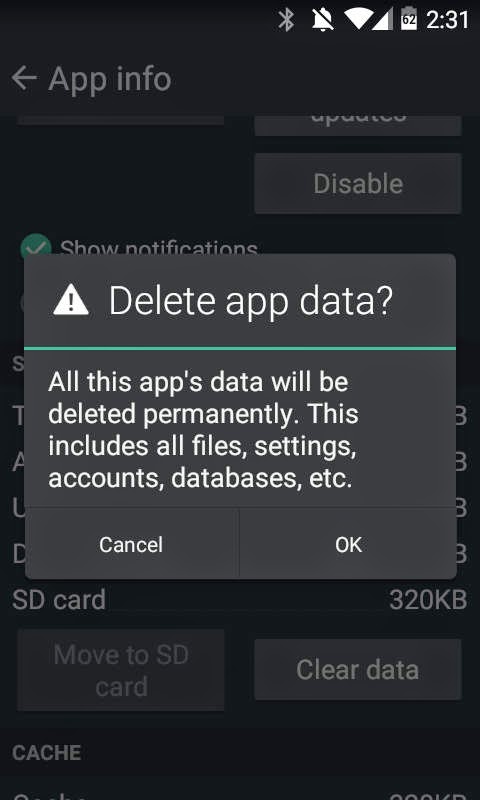
Clearing App Cache to fix 923 error in AndroidClearing App Cache for Google Play Store


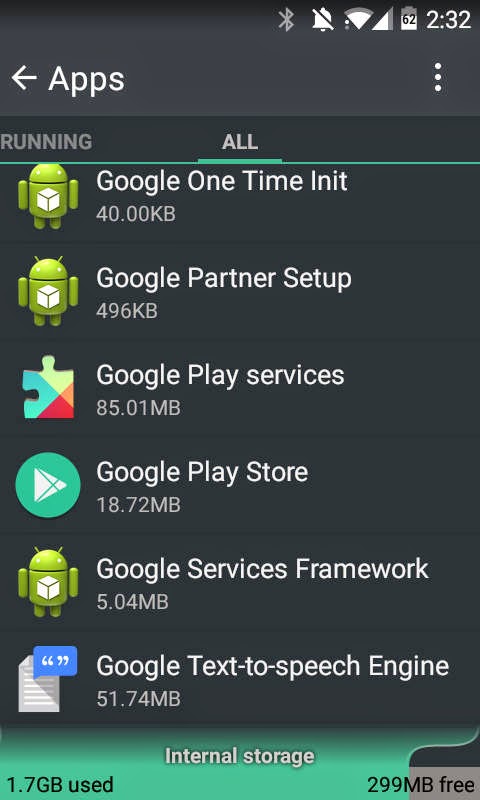
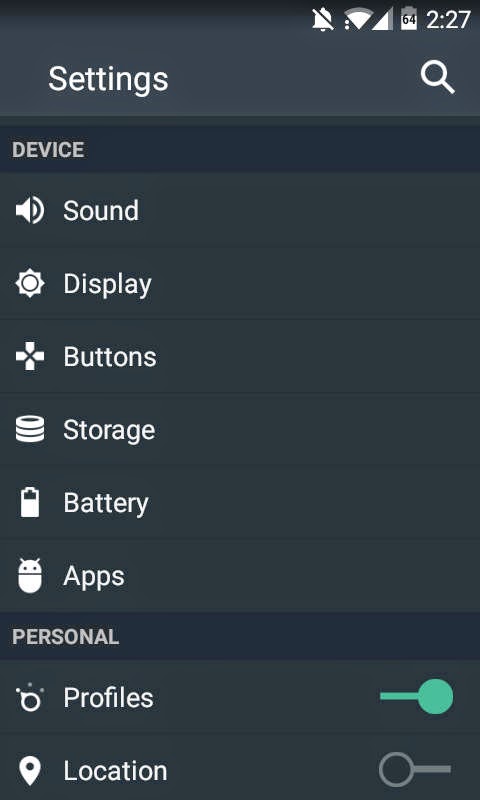
  • Go to Settings >> Apps >> Swipe left to see “All” apps list
    • Scroll down and select “Google Play Store” 
    • Select “Force stop” and then “Clear Data” >> Select “Ok”
  • Go to Settings >> Apps >> Swipe left to see “All” apps list
    • Scroll down and select “Google Play Services” >> 
    • Select “Force stop” and then “Clear cache” >> Select “Ok”
  • (optional) Again go back to “All” app list 
    • Scroll down and select “Google Play Framework” >> 
    • Select “Force stop” and then “Clear Data” >> Select “Ok”


Once above steps are completed, open Google Play Store, add you Gmail account information and start downloading apps and games.

Second Method: Clear System Cache

Android_Settings
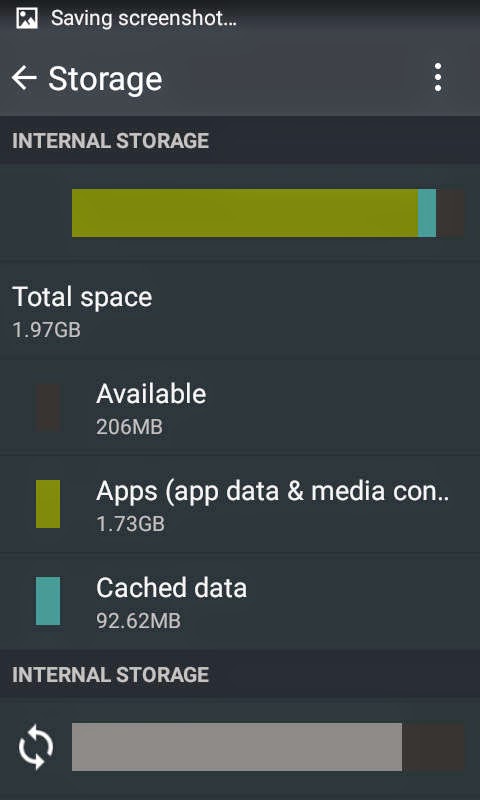
Clearing System Cache to Fix error 923 in Android Play Store


  • Go to Settings >> Storage
  • Tap on “Cached Data” under Internal Storage
  • Press “OK” to clear cache
  • Now reboot and try to install the App from the Google Play Store


I hope the above solutions helped resolve this error for your Android Smartphone or tablet. If you have any other 923 error fix, please mention them in the comments.


Note that this error is common mostly in the Jelly Bean operating system so if you update to the latest Android 4.4 Kit Kat or Android 5 Lollipop, you may stop getting this error. Some devices which have been affected by the 923 error include Moto G, Samsung Galaxy S5, Galaxy S4, Galaxy S3, Galax S2, Nexus 4, Nexus 7, HTC One X, LG L5.  Many users have complained of the 923 error while to download Whatsapp, Facebook, Blackberry Messenger etc.


download now

Read More

Sunday, September 25, 2016

How to fix error 920 in Google Play Store

How to fix error 920 in Google Play Store


The error 920 is another common Google Play Store related error. This bug prevents you from downloading or updating your apps & games from the Android market. This issue is also common in in Cyanogenmod based devices like OnePlus One. The fix for error 920 is the same as that of error 963 and the infamous error RPC:S-5:AEC-0.  All you need to do is clear some cache and delete/re-add your Gmail account in the settings. First thing youd want to try is rebooting (restarting) your android device and then installing the app causing the error. If that didnt work,  here are the simple steps to resolve or fix error 920 in Android Google Play Store:

How to Fix App Error 920 in Google Play Store  

Update for "Gmail" could not be downloaded due to an error. (920)


Method 1: Uninstall and Re-install the app or game causing error
  • go to Settings >> Apps >> All
  • scroll and find the App giving the error 920 >> Select "Uninstall" 
Method 2: Clearing Cache and Data 
  • go to Settings >> Apps >> All
  • scroll down and select "Gogle Play Store >>  Clear Cache and Clear Data
  • open Google Play Store and try to download/update the app or game


Method 3: Removing and re-adding Google account
  • go to Settings >> Accounts >> Select "Google"
  • select your Gmail account 
  • Press menu and select "Remove acccount"
  • optionally, do a reboot
  • Again, from Settings >>  Under "Accounts" >> select "Add account" >> Select "Google"
  • Now simply add back your Gmail account deleted earlier
  • Open Google Play Store and download or update the app  

One of the above three methods have worked perfectly for most users. The third method is popular but first two are shorter so you could give them a try. Did this fix solve error 920 for your Android? Let us know along with your device model and operating system. HTC One,  Galaxy S4, Nexus 5 users have widely reported this error. Whatsapp, Facebook, Gmail app installation are also frequently affected by this error. 

If you have an alternative or a more permanent solution, drop it in the comments. 


Related Error:
Unknown error code during application install: "920"


download now

Read More

Saturday, September 24, 2016

How to Fix Error Code 504 in Google Play Store

How to Fix Error Code 504 in Google Play Store


The Error 504 is a Google Play Store gateway error that occurs due to slow internet connection on your Wi-Fi or mobile data. This is the error message I received while trying to install Facebook via Google Play store: Cant install app. "Facebook" cant be installed. Try again, and if the problem continues, get help troubleshooting. (Error code:- 504). One of the signs of a slow connection is slow loading of normal webpages. Try opening google.com on your Android browser, if it takes longer than normal to load the page, then your connection is slow and when you try to download or update large Android apps or games in such a connection, you will get the unknown error code 504 in Google Play. Users have reported this error while trying to update/download apps like Facebook, Chrome, Titanium Backup, Viber and so in google Play.

This error generally occurs while downloading or updating apps while the internet is slow. This issues has affected many android devices running different OSs like JellyBean 4.2, KitKat 4.4 and Lollipop 5.0. Most of the time, Google Play Store error 504 goes away once your network is back to normal. If youre getting this error despite a normal internet speed try the following method to fix error code 504 in Google Play Store:

How to Fix Google Play Store Error 504 during app install & update

App cant be installed Error Code -504 in Google Play Store
Google Play Store Error Code: -504 while installing Facebook 

Method 1:Turn off and turn on Wi-Fi

This is basically to see whether your wi-fi is working as normal. 
  • First turn off your router, wait for 30 secs and then turn it back on
  • Now, turn off your smartphone or tablets wi-fi and then turn it back on
  • Connect to your Wi-Fi network
  • Open Google Play and try to update/install the app

Method 2: Turn off and turn on mobile data

Sometimes the problem can be with your home or office internet connection. You can simply turn on mobile data and try to download and install your app from Google Play Store. However, some mobile service providers charge high fees on mobile so only use mobile data if you can afford it. If your device is still unable to connect via mobile data, turn it off and on and check. 
  • You can turn off mobile data or the entire network via Aeroplane mode in the quick settings
  • If you dont know how to use Aeroplane mode, go to Settings >>Mobile Networks >> Disable Data
  • Now turn your mobile data back on and try to run the installation

Method 3: Clearing Cache and Data of Google Play Store


This is the most used method for fixing many Google Play Store error codes and error messages.
  • Go to Settings >> Apps >> Swipe and select "All"
  • scroll down and select "Google Play Store" >> Clear cache and Clear Data
  • again, from "All" >> scroll down and select "Google Service Framework" >> Clear Cache and Clear Data
  • Now, open Google Play Store and update or download your app or game 
Related: How to fix com.android.vending has stopped Google Play error

Please note that the above methods might not work for everyone but they have worked for most. Most of the times, this error just automatically resolves after your network speed is normalized. If you have other possible  solutions for the 504 Error in Google Play Store please let us know in the comments. 

download now

Read More

Tuesday, September 20, 2016

Free Download Google Chrome 34 0 1820 2 Dev Terbaru

Free Download Google Chrome 34 0 1820 2 Dev Terbaru


Google’s game changing browser Chrome combines sophisticated technology with a simple UI, to create a faster, safer and easier browsing experience. Launched in 2008, Google Chrome quickly dominated the browser market to become the most used browser globally within 4 years of its public release. Google’s rapid and continuous development cycle ensures the browser continues to compete with the other most popular and advanced web browsers available.

Speed
Perhaps the area Google invested most of its development time to differentiate from other browsers. Google Chrome launches extremely quickly from your desktop, runs applications at speed thanks to a powerful JavaScript engine and loads pages rapidly using the WebKit open source rendering engine. Add to this quicker search and navigation options from the simplified UI and you have a browser that is pretty hard to beat on speed.

Clean, simple UI
Google Chrome’s most striking feature and a substantial factor in its popularity - the simple UI hasn’t changed much since the beta launch in 2008. Google focused on trimming down unnecessary toolbar space to maximise browsing real estate. The browser is made up of 3 rows of tools, the top layer horizontally stacks automatically adjusting tabs, next to a simple new tabs icon and the standard minimize, expand & close windows controls. The middle row includes 3 navigation controls (Back, Forward & Stop/Refresh), a URL box which also allows direct Google web searching and a star bookmarking icon. Extensions and browser settings icons line up to the right of the URL box. The third row is made up of bookmark folders and installed apps. Easily overlooked now, this clean UI was a breath of fresh air compared to the overcrowded toolbars of popular browsers pre-2008.

Privacy
Another hugely popular feature, Incognito mode allows you to browse privately by disabling history recording, reducing traceable breadcrumbs and removing tracking cookies on shutdown. Chrome’s settings also allow you to customize regular browsing privacy preferences.

Security
Chrome’s Sandboxing prevents malware automatically installing on your computer or affecting other browser tabs. Chrome also has Safe Browsing technology built in with malware and phishing protection that warns you if you encounter a website suspected of containing malicious software/activity. Regular automatic updates ensure security features are up to date and effective.

Customization
A vast selection of apps, extensions, themes and settings make your browsing experience unique to you. Improve productivity, security, navigation speed, pretty much anything you can think of with apps and extensions from the Google Chrome Store. Install themes created by top artists or make your own using mychrometheme.com. Sign in with your Google Account to back up your contacts, preferences, history as well as access all your Google tools with a single login.
 
 Download Google Chrome 34.0.1820.2 Dev Terbaru
Click HERE

download now

Read More

Sunday, September 18, 2016

How to Fix Error 492 on Google Play Store

How to Fix Error 492 on Google Play Store


We have a simple fix for app could not be downloaded due to error 492 in Google Play Store. This Android Error prevents users from updating, downloading or installing apps and games from the Play Store.  Its weird that this error only affects selected apps whereas other apps install just fine. So what are the solutions and possible methods to resolve this error? The solution involve the similar steps used to fix Android error 498, which is to clear app cache and data of Play Store and other similar Google apps. Here are the easy steps to fix error 492 in Google Play Store and also on MIUI based Mi-Market:

How to fix Google Play Error 492 on Android 

Example errors:

Update for "YouTube" could not be downloaded due to an error (492)

Update for "Clash of Clans" could not be downloaded due to an error (492)

"Hearthstone: Heroes of  Warcraft" could not be downloaded due to an error. (492)

Other Apps/games affected by Error 492 include Facebook, Viber, Whatsapp, Hearthstone:Heroes of Warcraft, Asphalt 8, Dead Trigger and so on. 

screenshot of google play error code 492


Solution 1: Re-installing the App or Game

If you are getting this error while trying to update, first uninstall the app and then re-install it from Google Play Store. Also, make sure to check that your internet connection is not slower than usual.


Solution 2: Clearing Cache and Data 
This is the most common approach to fix Android error messages and error codes during app installation in Google Play Store.
  1. Go to Settings >> Apps >> All
  2. Scroll down and select "Google Play Store"
    • Select "Clear Cache" and "Clear Data"
  3. Scroll down and select "Google Services Framework"
    • Select "Clear Cache" and "Clear Data"
  4. Now open Google Play Store and update or install your app (or game)
Additionally, you may have to uninstall updates for "Google Play Store"  on Step 2 above. That will restore the factory version of the Play Store. Dont worry, the Play Store app will automatically update later. 

Solution 3: For Custom ROM users
Custom ROM users use a "recovery" menu to flash new ROMs (operating systems) or other additional software tweaks via zip files. People who use customized Android OSs like Cyanogenmod are tech savvy and they will know what the below steps are, but newbie flashers may need to do som research. 
  • Turn off your phone and boot into recovery
    • Search online for the proper button combination to enter recovery mode
  • Use volume keys for highlighting menu options
  • Select "wipe cache partition" 
  • Optionally, go to advanced menu and select "wipe dalvik cache"
  • Reboot system
  • Open Google Play Store and Download your app 

Solution 4: Formatting SD Card

If you are running custom ROM on your rooted Android device, then you can probably install APps to SD. When you have a corrupt SD Card and try you install apps (games) in it, you can get error 492. Format your SD Card or run on a disk check to find and solve system file errors. To check for errors, connect your device to your PC or simply take out the SD Card and insert it into your PC. Then right click on the removable storage and click Properties. Go to Tools >> Click "Check". You might have to replace your SD Card if it has lots of bad sectors.

If you are still getting the error code 492, you maybe able to fix it my using the methods on these posts:

Related Android Error Codes and Fixes
How to Fix  Google Play Error 907 
How to Fix Error 963 in Google Play
How to Fix Error 489 in Google Play
How to Fix Error 906 in Google Play 


download now

Read More

How to fix error 906 in Google Play Store

How to fix error 906 in Google Play Store


In this post we will read the methods to fix app could not be downloaded due to an error (906) in Google Play Store for Android. The fix for download failed error 906 fix is similar to that of error 963. The common method used to solve fix these error codes is to uninstall Google Play Store updates and clear data of Google Play Services. Some have also resolved this issue by unmounting SD card before downloading an app or game. The step by step instructions on how to fix error 906 in Google Play Store is mentioned below:

How to fix error 906 in Google Play Store [Best Solution]


Method 1: Clearing Cache and Data 
  1. Go to Settings >> Apps >> All >> Scroll down the list and select "Google Play Store"
    • Select "Clear Cache" and "Clear Data"
  2. Similarly, from All >>Screoll down and select "Google Play Services"
    • Select "Clear Cache" and "Clear Data"
  3. Now open Google Play Store and try to update or install the app/game that was initially giving you the error 

Method 2: Unmounting SD Card
  1. Go to Settings >> Storage >> Scroll down and select "Unmount SD Card"
  2. Open Google Play Store and then download or update the app or game
  3. After successful update or installation, go back to Storage  >> Scroll down and "re-mount the SD card"

Method 3: For error 906 during update of apps-games installed in SD Card
  1. Go to Settings >> Apps >> All >> scroll down and select the app (game) thats giving the error 906
  2. Select "Move to internal storage"
  3. Open Google Play Store and run update the app (game)
  4. After successful update, move the app back to SD Card.

Method 4: Uninstalling Google Play Store updates (high success rate)
  1. Go to Settings >> Apps >> Scroll down and select "Google Play Store"
  2. Select "Uninstall Updates"
  3. Optionally, go to settings >> apps >> scroll down and select "Google service framework"
    • Clear Data and Cache
  4. Open Google Play Store and update or download the app (game) that was giving you error 906


Hit the social media buttons if the above solutions fixed Error 906 for your Android device. Let us know if you have any other steps/methods to resolve this Google Play Store error.


download now

Read More

How to Fix Error 905 in Google Play Store Android Lollipop KitKat Marshmallow

How to Fix Error 905 in Google Play Store Android Lollipop KitKat Marshmallow


Many Android 5.0 Lollipop users are reporting error 905 in Google Play Store while installing or updating apps/games. Heres the error message: "app" could not be downloaded due to an error (905). I am not exactly sure what this error code means but it may be caused by poor memory management or memory leak on a buggy OS. I got the Google Play error 905 while downloading an app on my phone that had recently received Android 6.0 update. The download bar would show progress but it would stop downloading right at the end and then this error message would pop up. Sometimes the error would appear right after tapping the "install" button in Google Play Store.  

Android users are getting this error mostly while downloading large apps or games like Microsoft Power Point, Microsoft Word, Excel, Asphalt 8, Monument valley, Hearthstone Heroes of Warcraft, Mortal Kombat X etc.  After some research, I’ve found some quick methods to fix error 905 in Google Play Store. These fixes should also work for  devices running Android 4.3 JellyBean Android 4.4 KitKat, Android 5 Lollipop or  Android 6 Marshmallow.


How to Fix error 905 in Google Play Store Android


Method 1: Keeping screen on during app update or download in Google Play Store

  1. Go to Settings >> Display >> Screen timeout (Sleep) >> Keep screen turned on (or set timer to the highest possible value) 
  2. Open Google Play Store >> Download your app that was causing error 905
  3. Do not go back or close Google Play Store until the download and installation is completed.

Method 2: Close background apps

  1. Sign out of apps that run in the background
  2. Go to Settings >> Apps >> Running >> Check apps that are taking too much MB or memory >> Stop or sign out of these apps
  3. Open Google Play Store and try to install/update app 


 If the above methods didn’t work, try the one below

Method 3: Uninstalling updates for Google Play Store
  1. Go to Settings >> Apps >> All Scroll down till you find “Google Play Store” 
  2. Select “Uninstall updates” Open Google Play Store >> Install or update the app 
  3.  Note: Your Google play Store will automatically update later but you will no longer get the 905 error.

Common devices experiencing this error include Nexus 7, Nexus 5, Galaxy S4, S5, S6, HTC One, Xperia Z2 etc. If you’ve managed to solve  Google Play error code 905 through other alternative methods, let us know about it in the comments. If any of the above method worked for you, hit the like buttons.


download now

Read More

How to fix process com google android youtube has stopped error

How to fix process com google android youtube has stopped error


Many users running custom versions of Android OS like Cyanogenmod, Paranoid Android etc  in their smartphones or tablets have reported an error that prevents YouTube app from opening. Here is the error message: process.com.google.android.youtube has stopped unexpectedly. Please try again. After this error message, the app force closes, and when you try to open it the same thing happens. Here are some methods to fix the google.android.youtube has stopped error:

How to fix com.google.android.youtube has stopped error


First make sure your Youtube app is updated in the Google Play Store. If you still get the error message after updating, try the methods below:
Similar error

Related error: process com.google.android.apps.uploader has stopped

Method 1: Uninstall and reinstall YouTube app

  1. Uninstall YouTube app
  2. Re-install it from Google Play
  3. Open YouTube and see if the error is still there

Method 2: Clear cache and data of YouTube app

  1. Go to Settings >> Apps >> All >> scroll down and select “YouTube”
  2. Select “Clear Data” and “Clear Cache”
  3. Open YouTube app and see if the error is resolved

Method 3 (for rooted users with clockworkmod recovery:

  1. Reboot into recovery( power off, press volume down + power button, let go after logo appears)
  2. Go to advanced options >> select “clear dalvik cache”
  3. Reboot system
  4. Open Youtube app

Method 4: Factory reset


If all fails, you will need to factory reset your device, which will most likely fix this issue. First back up all your data to an external SDCard or your hard drive. You can also backup your apps and games using titanium backup. If you are factory resetting your phone, backup your SMS and Contacts by using the free Super Backup: SMS and contacts app from Google Play store.
  1. Go to Settings >>Backup and Reset >> select “factoy data reset”
  2. Confirm and reboot your android tablet or phone.
Before doing the factory reset, you can also try second method  of this post: How to fix error 927 in Google Play 

Did the above methods fix the process.com.google.android.youtube has stopped error for your Android device? Do you know any other fix for this error? Let us know in the comments.


download now

Read More

Friday, September 16, 2016

How to fix Android Error 491 in Google Play Store

How to fix Android Error 491 in Google Play Store


The Google Play Error 491 and 492 are common errors that dont let users install or update apps from the Android app Store. This is a minor issue and can be easily solved by removing and adding back your main Google(Gmail) account. Basically the error fix involves the same method as for solving other Play Store related errors like RPC:S-5:AEC-0, Error 907 and Error 963. Another possible fix for Error 491 in Google Play is to wipe cache partition and dalvik cache via recovery, but the first method mentioned below is much simpler.

How to fix Google Play Error 491 and Error 492

All you need to do is remove your Gmail account from settings and then add it back, The whole thing takes barely 5 minutes. If you already know how to do it, no need to read further, If not, here is the step by step instruction: 
Steps to fix error 491 in Google Play Store
  1. Go to Settings >> Scroll down to "Accounts"
  2. From your Accounts select Google>>Remove your main Gmail Account (Press menu key and select remove account)
  3. Now reboot your Android phone or tablet
  4. After reboot, add back your Gmail account
  5. Run Google Play Store and install the app

I hope the above solutions worked for you.  If it fixed the issue, please like this post and drop a comment. If you have any other solution for the Android Error 491 also let us know about it in the comments. 


download now

Read More

Thursday, September 15, 2016

How to fix account is not eligible for google now on Android

How to fix account is not eligible for google now on Android


After the latest update my Google Now stopped working and gave me this error- your account is not eligible for Google now. The issue I had was that I couldn’t use the Google Now voice search (Ok Google) feature after the update. Before the latest update, I had Google Now cards disabled but I could use the voice command feature to give commands for opening apps, setting reminders, getting directions, settings alarms, scheduling meetings etc. So to get this Google voice search to work, I simply uninstalled the updates but you may have better use for the Google card feature of Google. So I searched some forums for possible fixes or solutions to get the Cards working. Read below about how to fix your account is not eligible for Google now on Android:

Method to get just the "OK Google" Voice command working:

If you don’t need Google cards but want the Voice search to work. This works if your voice search was already working prior to the latest Google Now update. For this you’ll simply have to uninstall updates for Google Now so that you get the original version back.
  • Go to Settings >> Apps >> Swipe and select “All”
  • From “All” apps list, Select “Google apps” >> Uninstall updates
  • Now go back and open Google search, and your “Ok Google” voice command should be working. Try commands like “set reminder…, what’s the weather like today, when was …. Born etc.. It should all work.

Possible fix to get Google Now Cards as well as Google Search ‘OK Google’ command working:

It seems Google has disabled Google Cards feature for many countries so Google Now won’t work everywhere. The below steps was recommended by various users and have worked for many who want to get the Google Cards working in Google Now. However, just like any other “Google Fix”, this is not a sure-fix for “your account is not eligible for google now” error but you can certainly give it a try:

Method 1: How to activate Google Now Cards (Posted on NexusHelp Forum)

On your browser do the following:
  1. Log into Google Apps Admin page 
  2. At the bottom, click More controls >> Select Other Google services;
  3. From Google services >>Select Filter icon on the top right >> Uncheck Show top featured services; find service called Location history and enable it (I did for all users); 

On your Android smartphone or tablet do the following:
  1. Go to system Settings >> Accounts >> Location >> Google Location Reporting >> Enable all options
  2. Go to system Settings >> Apps >> All >> Select “Google Apps” >> Search & Now>> Accounts and privacy
  3. Select Google Account >> Log out 
  4. Repeat the above steps and this time log in to your account


Method 2: Solution for this account is not eligible to use google now [from XDA forum] 

Note: This method involves hard reset so first make sure to backup all your apps, photos, videos, music etc.
  1. Switch off your Android device. 
  2. Take your sim-card, memory card etc out 
  3. Go to settings and do a factory reset (Hard reset) 
  4. Now your device will reboot 
  5. On the initial setup, skip Wi-Fi settings and everything 
  6.  Go to settings >> Location >> Turn it “Off” 
  7. Turn on Wi-Fi >> Use VPN bestukvpn or OneclickVPN 
  8. Activate Google Now add login Your Gmail account in the settings


Alternative Method 2 to active Google Now Cards without factory reset 
  1. Take your sim-card, memory card etc out 
  2. Go to Settings >> Accounts >> Search >> Accounts & Privacy >> Google account >> Sign out 
  3. Go to Settings >> Apps >> All >> Select “Google Play Services” >> Uninstall Updates and Delete Data 
  4. Connect to a VPN bestukvpn or OneclickVPN 
  5. Open Google Now and Select to "opt in" 
  6. Now go through the steps to activate Google Now 
  7. You will get the "This account is not eligible to use Google now" on Google Search, just search for something 
  8. From Google Search, Slide from left and sign in to your Google Account 
  9. You should get the option to “opt in to Google Now”.


Method 3: How to enable Google Now Cards (didn’t work for me)

  1. Reboot device 
  2. Go to Settings >> Apps >> Search >> Accounts and Privacy >>Google Account>> Select “Sign out” Go back to Settings >> Apps >> All >> Select “Google Play Services” from the list 
  3. Click “Disable” >> You will prompted to uninstall updates >> Accept >> If you’re prompted to disable android device manager, do it. 
  4.  Now you should be able to Disable Google Play Services. 
  5. Got to Settings >> Accounts >> Search >>Accounts & Privacy >> Google Account >> Choose your Gmail 
  6. You will be prompted to enable Google Play Services >> Enable it 
  7. Update Google Play Services and Enable Android Device Manager
The above methods arent guaranteed to fix this issue on all devices. If you’ve any other methods to get the Google Now cards working, please let us know in the comments. Users have reported this “Google Now disabled after update issue” on wide range of devices including, LG G4, Samsung Galaxy S4, S5, Nexus 5, Nexus 7, Moto G, Moto X and so on.

download now

Read More

Wednesday, September 14, 2016

Google Photos v1 8 0 106438466 Apk for android

Google Photos v1 8 0 106438466 Apk for android


Google Photos v1.8.0.106438466 Apk for androidGoogle Photos is a Photography App for android.
Download last version of Google Photos Apk for android from Adhe Droid with many link.

Google Photos is the home for all your photos and videos, searchable and organized by the people, places, and things that matter.

• VISUAL SEARCH – Your photos are now searchable by the people, places and things that appear in your photos. Looking for that fish taco you ate in Hawaii? Just search Hawaii or food to find it, even if it doesn’t have a description. Note: Face grouping is not available in all countries.

• AUTO BACKUP – All your photos and videos can be safely backed up and accessible on any device. Store unlimited photos and videos at high quality for free, or store at original size that counts towards your Google account storage.

• SAVE SPACE ON YOUR DEVICE – Google Photos can help you clear safely backed up photos and videos from your device, so you never have to worry about deleting a photo to make space again.
• BRING PHOTOS TO LIFE – Automatically get animated GIFs, montage movies, collages, panoramas, and more made from your photos, or create them yourself.

• EDITING – Transform photos with the tap of a finger. Use simple, yet powerful, photo and video editing tools to apply filters, adjust colors, and more.

• SHARING – Share photos directly to your favorite apps, or instantly share to anyone with just a link.

• REDISCOVER – Be reminded of your memories from the past. Look back at what you did a year ago, or two, or even 10 years ago.
• CAST – Easily share your photos and videos to your TV with Chromecast.


Google Photos v1.8.0.106438466 Apk for androidGoogle Photos v1.8.0.106438466 Apk for androidGoogle Photos v1.8.0.106438466 Apk for androidGoogle Photos v1.8.0.106438466 Apk for android


Link Download :
- Google Photos via GooglePlay 
- Google Photos (ARM) via KumpulBagi | Userscloud | Tusfiles | Usersfiles
- Google Photos (x86) via KumpulBagi | Userscloud | Tusfiles | Usersfiles


download now

Read More

How to fix error 925 on Google Play Store

How to fix error 925 on Google Play Store


The error 925 is a Google Play store error affecting newer Android operating systems like Android 4.4 KitKat, 5.0 Lollipop and 6.0 Marshmallow. This error message pops up during app download or update, rendering the installation process unsuccessful. Example- “Whatsapp messenger” could not be downloaded due to an error (925) or Update for “Facebook” could not be downloaded due to an error (925). The solution for this error is the same as the fix for Google Play Error 927. Below are two simple methods that will quickly fix error 925 on Google Play Store Android:


First thing you’d want to try is to simply cancel all downloads or updates and then download each app or game one by one in Google Play Store. If that didn’t work here are the solutions for Google Play Error 925:

How to Fix Google Play Error 925 

Clearing data of Google Play Store

Method 1: Clear Google Play Store Cache

  1. Go to Settings >> Apps >> swipe left and go to “All”
  2. From the list, scroll down and select “Google Play Store”
  3. Tap “Clear Data”
  4. Open Google Play Store and then download your app or game
If the error persists, you can also try repeating the above steps to clear data for “Google Service Framework”.


Method 2: Removing and re-adding Google account

This method has been widely used to fix many Google Play store errors like the infamous RPC-S:7 RPC-S:5 and RPC-S:7 errors
  1. Go to Settings >> Accounts >> Select “Google”
  2. Tap on your Gmail address (Google account)
  3. Then press menu button on the phone or the dotted icon on the top right screen
  4. Select “Remove account” >> Okay
  5. Now again go to Accounts >> select “Add Account” >> Select “Google”
  6. Simply add back the previous gmail account
  7. Now open Google Play Store and download your apps/games

I hope the above one of the methods fixed error 925 on Google Play for your Android device. If you have any other solution or fix, please mention them in the comments.

Similar Google Play Errors and Fixes

  • How to fix error 963 in Google Play
  • How to fix error 907 in Google Play
  • How to fix error 924 in Google Play
  • How to fix error 920 in Google Play


download now

Read More

Tuesday, September 13, 2016

What to do if website not showing in Google Search Results

What to do if website not showing in Google Search Results


Bidvertiser Ads Block Site in Google Search Results  

Hello webmasters and bloggers! I know you hardly search for this on how to recover, troubleshoot or fix your blog or website when suddenly drop your organic traffic and worse case block or delete in google search engine (www.google.com).

also read ? How to Fix Google Master Tool cross-site malware

 This issue starts at Google Master Tool (Security Issues)
Currently, we havent detected any security issues with your sites content. If you want to learn more about security issues and how they could affect your site, review our resources for hacked sites. 

However, if you see a malware warning in the browser when navigating to your site, its likely that your site is referencing code or content from another domain that has malware. Read up on cross-site malware and learn how to address it.

Actually Infotechmaestro also encountered this problem, look here when I search my site in google ? zero (0) results found!


Bidvertiser Ads Block Site in Google Search Results

You search in google.com -  site:www.mywebsite.com - did not match any documents.

Suggestions:
  • Make sure all words are spelled correctly. 
  • Try different keywords. 
  • Try more general keywords.

Why and what the cause?

Bidvertiser ad network sends and display advertisements on your page with malicious code (pop up, pop under) that potentially re-direct your readers to a fake download sites or phishing urls that trigger your browsers like Google Chrome, Mozilla Firefox and Internet Explorer to be suspicious. So all
you have to do is to ERASE all Bidvertiser ads widget on your blog page.

also read ? How to Force Website to show in Google Search Results

download now

Read More

Monday, September 12, 2016

Error Fix Unfortunately Google Play Store has stopped Android

Error Fix Unfortunately Google Play Store has stopped Android


Many users who recently updated their Android system or upgraded to a newer version of the Android operating system are experiencing the "Unfortunately Google Play Store has stopped" error. This error pops up every time you open the Google Play Store app to download or update an app, and then it suddenly force closes. After this error you may also get another one that says, "Google Play Services has stopped error". These errors are particularly frequent if youve just flashed a custom ROM (example: Cyanogenmod) with an incompatible GAPPS package. Here are the quick methods to solve/fix unfortunately Google Play has stopped error in Android:


How to fix unfortunately Google Play has stopped error

Method 1: Clear data for Google Play Store

  1. Go to settings >> Apps >> All
  2. Scroll down teh list of apps and select "Google Play Store"
  3. Tap "Clear Data"
  4. Restart device
  5. Now open Google Play and try to download/update an app
  6. If youre still getting the error, try the solution here: link
  7. If nothing works and youre not rooted, a factory reset is the last resort.
Method 2: For Custom Rom users
  1. Reboot into recovery
  2. Go to Wipe/format options and select "Wipe Cache" and "Wipe Dalvik Cache"
  3. Reboot system
  4. Open Google Play Store and download/update the app
  5. If you get the error, reflash your Gapps package again and wipe dalvik cache.
  6. If youre still getting the error proceed to steps below
  7. Download another compatible GAPPS package  for your custom ROM
  8. Reboot into recovery 
  9. Select install Zip and then flash the new GAPPS package
  10. Go to Wipe/format options and select "Wipe Cache" and "Wipe Dalvik Cache"
  11. Now reboot system and try to download the app via Google Play
If you are still getting the Play Store has stopped error after reflashing or flashing an entirely new Gapps package, you will have to flash an entirely new ROM followed by a compatible Gapps package. Then simply clear Cache/Dalvik Cache and reboot system. The error should now be solved.


download now

Read More

Download Google Chrome 43 0 2357 124 Terbaru

Download Google Chrome 43 0 2357 124 Terbaru


Image result for Google Chrome 43.0.2357.124 TerbaruDownload Google Chrome 43.0.2357.124 Terbaru

Google Chrome adalah browser yang menggabungkan desain minimalis dengan teknologi canggih untuk membuat web lebih cepat, lebih aman, dan lebih mudah.

Perangkat lunak komputer ini memiliki kelebihan pada kecepatan dan tampilannya yang menarik. Di balik tampilannya yang minimalis dan sederhana, Google Chrome memiliki segudang fitur yang setara dengan aplikasi peramban alias web browser modern lainnya. Fitur seperti multitab, bookmark, dan fitur penambahan fungsi melalui ekstensi bisa Anda temukan. Aplikasi ini juga terintegrasi dengan beberapa layanan Google, seperti fitur terjemahan halaman web secara otomatis termasuk dalam Bahasa Indonesia dan pencarian Google.

Fitur & Kelebihan Google Chrome :
1.Satu browser untuk segalanya
Ketik di address bar dan anda akan mendapatkan saran untuk pencarian dan halaman web.
2.Lebih cepat dan mudah diakses
Mengakses halaman favorit Anda dengan kecepatan yang signifikan dari setiap tab baru.
3.Mode penyamaran
Tidak ingin laman yang Anda kunjungi muncul dalam riwayat web/history Anda? Memilih mode penyamaran untuk mode Penjelajahan Pribadi atau dengan bahasa lain di mozilla firefox adalah private browsing.
4.Safe browsing
Download Google Chrome 43.0.2357.124 Terbaru
Klik DOWNLOAD

download now

Read More

Saturday, September 10, 2016

Cara Mudah Mengembalikan Blog Yang Sudah Terhapus Oleh Google

Cara Mudah Mengembalikan Blog Yang Sudah Terhapus Oleh Google


Pernahkan kalian mengalami kebingungan saat mau posting blog dan masuk keakun blogger muncul pesan bahwa blog telah dihapus? Tentu kita bingung dan sedih karena blog yang telah kita bangun sekian lama tiba tiba sirna.

salah satu penyebab blog dihapus karena pengguna tidak mematuhi kebijakan konten blogger


Jika Blog anda sudah dibanned/dihapus oleh google, maka ada beberapa cara untuk memperbaiki/mengembalikan blog yang dihapus google tersebut agar dapat kembali tampil.

Nah berikut beberapa cara yang kami peroleh dari berbagai sumber :
1. Cara mengembalikan Blog yang dihapus Google dengan Verifikasi akun

Masuk ke http://www.blogger.com dan Log In dengan akun Blogger sobat.
aka akan muncul pemberitahuan yang menginformasikan kepada sobat untuk memilih apakah sobat akan diberi informasi melalui SMS atau melalui Telepon, sebaiknya pilih SMS saja. Selanjutnya pilih negara tempat sobat tinggal dan sobat diwajibkan untuk memasukkan Nomor Handphone sobat dengan format +62xxxxxxxxx sesuai dengan nomor handphone sobat. Kemudian tekan tombol “Send verification code to my mobile phone”.
Tunggu hingga kode verifikasi masuk ke handphone sobat.
Setelah sobat mendapatkan kode verifikasi tersebut, silahkan masukkan pada kotak verifikasi yang telah disiapkan dan tekan tombol “Verify”.
Silahkan Log In kembali ke akun Blogger sobat dan selamat blog sobat sudah kembali ke tangan sobat dengan selamat sentosa.

2. Cara mengembalikan Blog yang dihapus Google dengan Memasukan Kode Anti Spam yang muncul/ada pada dashboard akun blogger anda.

3. Mengembalaikan Blog dihapus Google dengan cara memasuki forum blogger dan bertanya tentang blog anda. yang beralamat di :http://productforums.google.com/forum/#!forum/blogger

4. JIka langkah-langkah cara mengembalikan blog yang dihapus google diatas tetap belum berhasil, maka langkah yang terkahir adalah dengan mengajukan Final banding Spreadsheet. Kunjungi alamat :https://spreadsheets.google.com/viewform?key=pZHHZdeYKeHjcTRpnBYV0Qw&email=true

Kemudian masukan url blog anda, lalu klik Submit.
setelah itu berdoalah agar blog anda dikembalikan oleh Google. karena google memiliki hak penuh dalam hal ini.

Demikianlah beberapa cara mengembalikan blogspot yang dihapus google, dan yang terpenting, jika anda seorang blogger, patuhilah kebijakan konten blogger, agar tidak kena banned. semoga bermanfaat bagi anda.

download now

Read More