Android apps that play only audio from video files
A lot of users have been asking me if there is an Android app that plays only audio from video files. Most of the users wanted a way to listen to just the audio of YouTube videos theyd downloaded. You can find a lot of important and free audio books, lectures and tutorials on YouTube, which can be downloaded via video downloader plugins in Firefox browser. Such YouTube files will be downloaded in either MP4 or FLV format, and by default it opens on a video player app even though you just want to listen to the music or audio of that file. Fortunately, there are a couple of Android apps that play only audio from video files of different formats. This means audio playback will continue even when the screen is turned off.
MX Player is probably the most downloaded video player app on Android. What many don’t know is
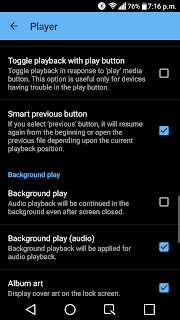 that MX Player has a feature that allows you to play only the sound track of the video in the background i.e. when the app is minimized. This allows you to continue to listen to the audio from video files even when the screen is turned off. To use this feature, follow these steps:
That’s it now audio playback will be continued in the background even after screen is closed.
Note: There is no playlist feature in Mx Player so you will have to use folders to organize your video files.
Is there a video player out there that will let me play only the audio track of the video, or at least turn off the screen while Im playing it?
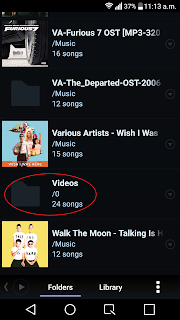 Poweramp will detect all your video files as songs and play it just like any other audio files. Though Poweramp is a paid app, it will give you more audio control that Mx Player. Another drawback of MX Player is that it doesn’t have a built-in playlist creator, so you will have to manage videos in separate folders if you want some videos to play together. On Poweramp you can manage the video files just like audio files and add them to playlists and also tweak the audio to your liking using the built-in equalizer.
While Poweramp will automatically find your video files saved in the internal storage, it may not detect it files inside a folder in the external storage or SD card. In that case, go to settings >> Folders and library >> Music Folders. Expand folders and then choose the appropriate folder in the external storage. Now, Poweramp will scan that folder as well.
If you have setup a default video app, you will need to reset or clear the default app preference. Read this post: How to remove default app settings on Android
If you know any other Android apps that lets you play audio from video file, let us know in the comments. We will test such apps and add it to this post.
How to listen to only audio of videos with screen turned off using MX Player
MX Player is probably the most downloaded video player app on Android. What many don’t know is - Download and open MX Player
- Press menu (three dot icon on the top right) >> Tap “Settings” >> Tap “Player”
- Scroll down and select “Background play”
That’s it now audio playback will be continued in the background even after screen is closed.
Note: There is no playlist feature in Mx Player so you will have to use folders to organize your video files.
Is there a video player out there that will let me play only the audio track of the video, or at least turn off the screen while Im playing it?
How to Play only audio track of videos via Poweramp music player
Poweramp will detect all your video files as songs and play it just like any other audio files. Though Poweramp is a paid app, it will give you more audio control that Mx Player. Another drawback of MX Player is that it doesn’t have a built-in playlist creator, so you will have to manage videos in separate folders if you want some videos to play together. On Poweramp you can manage the video files just like audio files and add them to playlists and also tweak the audio to your liking using the built-in equalizer.While Poweramp will automatically find your video files saved in the internal storage, it may not detect it files inside a folder in the external storage or SD card. In that case, go to settings >> Folders and library >> Music Folders. Expand folders and then choose the appropriate folder in the external storage. Now, Poweramp will scan that folder as well.
If you have setup a default video app, you will need to reset or clear the default app preference. Read this post: How to remove default app settings on Android
If you know any other Android apps that lets you play audio from video file, let us know in the comments. We will test such apps and add it to this post.
download now


