Showing posts with label off. Show all posts

Friday, September 23, 2016

How to appear offline on Viber app for Android iOS turning off Online status

How to appear offline on Viber app for Android iOS turning off Online status


On Viber you can immediately check the online status of your friends and your friends can also check whether youre online or offline. You can actually appear offline by turning off "online" status in Viber app settings. However, many people dont know about this feature so they turn on aeroplane mode, turn-off Wi-Fi or mobile data so that they dont appear as online on Viber. Many people assume that if youre  appearing online on Viber, it means you are available for chat. However because were constantly connected to the internet, were always appearing as "online" on Viber and other messaging apps like Facebook Messenger and Whatsapp. This could be a hassle because people will want to chat with you even in youre work hours and you will be bombarded with Viber notifications. Of course you could always disable Viber notifications from Android settings but that could mean youll miss some important/urgent messages. If youre simply appearing offline, people will send you messages but wont expect an immediate response.


Here are the steps to appear offline on Viber app for Android or iphones
screenshot of Viber Privacy settings- turning off online status
  • Open Viber
  • Tap on the menu icon on the top left (or swipe from left edge of the screen to the right)
  • Scroll down and tap "Settings" >> Tap "Privacy"
  • Now tap on "Share Online Status" to appear offline

Once you disable your Viber Online status, you can change this settings only after 24 hours. Viber will notify you when you can change it. It is also a good idea to turn off "seen" status that appear below Viber messages after youve read them. Read: Hide seen from messages read on Viber app

download now

Read More

Thursday, September 15, 2016

Flash Smartfren Andromax – Fix bootloop C3 Error Off total

Flash Smartfren Andromax – Fix bootloop C3 Error Off total


If there are problems with your C3 Andromax Smartfren , suppose happened bootloop or shuts it down, you have to do a re-flash or install recovery img on the Andromax Smartfren. Flash process or flashing the same as the reinstall process on a computer or PC, so that you will get a flashing initial performance as well just come out of the factory . So flashing Smartfen Andromax C3 is a smart way if Smartfen Andromax C3 is not responding and can not be power on or other terms are bootloop.

also read ? How to Root Smartfren Andromax

Flash Smartfren Andromax

Tutorial:
  • Download Sdimage to Andromax C3 AD6B1H here
  • Once you have finished downloading files over, now extract the file, then move sdimage folder to the SD card.
  • Put the SDimage into the device Andromax C3
  • Then turn on your C3 Andromax, After Andromax C3 turns on and the position ready for use, you will find a message read more and iconic blue box. You can click or tap on the text.
  • Flash process will start, and lasted for 15 to 20 minutes. If you see an update message success, then the flash process is complete.
  • Done!

download now

Read More

Monday, September 5, 2016

How to turn off notifications from particular apps on Android

How to turn off notifications from particular apps on Android


The instructions on this tutorial is for devices running Android 4.4 KitKat, Android 5.0 Lollipop, Android 6 Marshmallow and newer operating systems.  Are you bothered by constant notifications from selected Android games like Asphalt 8, Champions, Clash of Clans and notifications from apps like Twitter, Flipboard, Viber, Whatsapp, Facebook and so on? Android has a built-in features to disable or turn off app notifications. You can disable notifications from any particular Android application or game. The notification will remain disable even after you restart or turn off your phone. You will have to enable it from the settings if you want to start seeing the notifications again.


Here are the steps to disable app notifications on Android phones and tablets:
  1. Go to Settings >> Apps 
    Turning off or blocking notifications from Asphalt - Android
    Blocking notifications from Asphalt 8 - Android 6 Marshmallow
    • Settings >> General >> Apps (on LG devices)
  2. Swipe left to get to"All" apps list (on some devices youll get directly to apps list)
  3. Scroll down and select "Viber" or any other app/game whose notifications you want to stop
  4. On Android Kitkat, Tap on "show notifications" and select "OK" (show notification is right below "Force Stop" option)
  5. On Android Marshmallow,  Tap on "Notifications"  >> Turn on "Block" notifications 

Now notification wills top showing up on your lockscreen and notification bar on the top of your Android display. You will also stop getting sound alerts after blocking notifications for the selected apps.


download now

Read More

Thursday, August 25, 2016

Free Download Off Road Drive PC Full Version

Free Download Off Road Drive PC Full Version


Free Download Off Road Drive PC Full Version - Ronan Elektron

       Off Road Drive adalah sebuah game adventure menggunakan mobil off road. Disini kamu bisa menjelajahi berbagai jenis medan yang tentunya memiliki tantangan yang berbeda antara tempat satu dengan lainnya. Dari segi grafis, game ini sudah sangat bagus dan detail, mulai dari mobil, tanaman, hingga bercak - bercak lumpur yang disebabkan kamu sendiri sewaktu ber off-road ria. Nah, temukan berbagai pengalaman baru di game yang sangat pantas untuk dimainkan ini.


Minimum System Requirements:
Operating System: Windows XP/ Windows Vista/ Windows 7/ Windows 8 and 8.1
CPU: 2.2 GHz
RAM: 1 GB
Hard Disk: 8GB
CPU: Intel Pentium IV or AMD Athlon XP
RAM: 1 GB
OS: Windows XP
Video Card: DX 9.0 card with 256 MB VRAM (NVIDIA GeForce FX 5500 or ATI Radeon 9550)
Sound Card: Yes
Free Disk Space: 8 GB


Recommended System Requirements:
CPU: Intel Core 2 Duo E6850 or AMD Athlon 64 X2 4200+
CPU: 3.0 GHz
RAM: 2 GB
OS: Windows XP
Video Card: DX 9.0 card with 256 MB VRAM (NVIDIA GeForce FX 5500 or ATI Radeon 9550)
Sound Card: Yes
Free Disk Space: 8 GB


Screenshot:

Free Download Off Road Drive PC Full Version - Ronan Elektron

Free Download Off Road Drive PC Full Version - Ronan Elektron

Free Download Off Road Drive PC Full Version - Ronan Elektron

Free Download Off Road Drive PC Full Version - Ronan Elektron

Free Download Off Road Drive PC Full Version - Ronan Elektron

Free Download Off Road Drive PC Full Version - Ronan Elektron


Download Link:
Download Off Road Drive


*Note: Jika muncul hitungan mundur 5 detik, ditunggu aja sob, lalu klik SKIP AD

Free Download Off Road Drive PC Full Version - Ronan Elektron

download now

Read More

Wednesday, August 24, 2016

How to turn off auto sync in iTunes

How to turn off auto sync in iTunes


You might have set your iTunes to automatically sync to your iPhone, iPad and iPod touch. When that option is enabled, every time you plug your iDevice into the computer your app data starts syncing. Here is how you can stop or turn off auto sync in iTunes:
  1. Open iTunes on your PC or Mac
  2. From the top menu select iTunes >> Preferences (For Windows, Choose Edit >> Preferences)
  3. Go to "Devices" tab
  4. Check the box for "Prevent iPods, iPhones, and iPads from syncing automatically".

Thats it. Now your iPhone or iPad wont sync automatically to iTunes.


download now

Read More

Thursday, August 18, 2016

GET 40 OFF MOVAVI

GET 40 OFF MOVAVI


If you have ever used a similar program, you will know a dark secret. They will offer you so many discounts! For example when on their purchasing page and then you try to close it, youll get a 10% discount. WOW! 10% for doing almost nothing. So I found out another legit way to get 40% off. AMAZING!!! And you were actually going to pay full price wow. heres the link :

https://secure.avangate.com/order/checkout.php?PRODS=4549329,4636227&QTY=1,1&CART=1&CARD=1&SHORT_FORM=1&SHOPURL=http%3A%2F%2Fwww.movavi.com%2Fstore.html&REF=qk97e015vbrii4a8hubljkgk03&p_name=videoconverterpersonal&SRC=vc_uninstaller&FSID=gjpf3snud8lm580arsqqvcg296&COUPON=UNINSTALLER40OFF&app=videoconverter&app_ver=15-2-3&lang=en_us&isTrial=1&partner=&huid=a35024412fcb46c57c31d1ebca5d22cfcd147454&utm_nooverride=1?

download now

Read More

Sunday, August 14, 2016

How to turn off dialpad touch sound on LG G5 G4

How to turn off dialpad touch sound on LG G5 G4


Out of the box, your LG smartphones has the screen touch sounds option enabled by default. While I personally find the lockscreen sound useful, I dont like my phone to make sounds everytime I touch an icon and I specially dont like the dialpad touch sounds because it doesnt allow me to call someone discreetly. The loud dialpad sounds can be very annoying not only to you but to those around you. Luckily, you can easily mute or turn off dialpad touch sounds on your LG device via Sound & notification settings. Additionally,  if you dont like the vibrations or haptic feedback while typing on the onscreen keyboard, you can also turn it from the "sound and notifications" settings.


Steps to turn off touch sound on dialer of LG G4 or G5 (and other LG devices)

Turning off dialpad touch sounds in LGs "sound effects" settings

  • Go to Settings >>  Sounds & Notification
  • Scroll down and tap on "More"
  • Here you can uncheck "Vibrate on tap" to disable screen tap vibrations or feedback
  • Now Tap on "Sound effects"
  • Uncheck " Dialpad touch sounds" and also "Touch Sound"

There you go, now you wont hear any sounds while dialing a number on your LG phone. 


download now

Read More

Thursday, August 4, 2016

How to turn off sound and vibration in Android keyboard

How to turn off sound and vibration in Android keyboard


If you’ve just got your Android or have recently updated it, you might be getting this annoying pop sound and vibration while using your onscreen keyboard. It’s quite easy to disable keyboard sound and vibrate but most people look at the wrong place and can’t find the settings to turn it off. I remember I had it turned off in my Android KitKat but when I recently updated it to Lollipop the keypress sound was back again. Some people may like it but I like my Android silent and smooth. Also, the sound vibration and sound with keypress can drain your battery faster but not drastically. Here is how you can turn off keypress sound and vibrate in your Android smartphone or tablet:

How to disable (turn off) sound and vibration in Android keyboard 

The first place people look is in the “Sound and notification” setting but the correct place is “Language & input” setting. Here is how you can access it:

  1. Go to Settings  >> Language & Input 
  2. Under “Keyboard and input methods” select “Android Keyboard AOSP” or any keyboard you are using right now. 
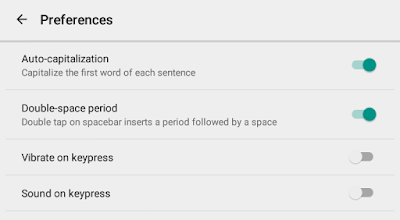
  3. From inside the android keyboard settings select “Preferences” >> Disable “Vibrate on keypress” and “Sound on keypress”
  4.  All done 

 There you go. Now you won’t get the annoying sound and vibration from your Android keyboard and save some battery life at the same time.


Accessing "Language & input" Setting.

Accessing "Android Keyboard Settings"

Disabling vibrate and sound on keypress


download now

Read More